The Guide
survey v2
survey v2 turns a Google Sheet into a scored diagnostic: you write the statements, it builds the form, scores every response, and emails each respondent a personal result with a chart.
Everything runs in your own Google Drive. No account, no subscription, no server holding your data.
Allow about twenty minutes end to end. You'll spend most of it writing.
If you haven't seen what it produces, take the Backstage Index first: it's the sample survey that ships with the tool, and the result email it sends you is the thing you're about to build.
Already run v1? Read the migration guide first — the short version is that v2 is a rebuild, not an upgrade, and the one thing it might cost you is a highly customized v1 email.
This guide adapts to match what a respondent sees. Pick what you chose (or plan to choose) in Backstage > Choose Scoring — sections that don't apply to it stay out of the way. Choosing Composite + Facet in the tool? Pick whichever facet method you're using below; the composite guidance always shows too.
Check which Google account you are in
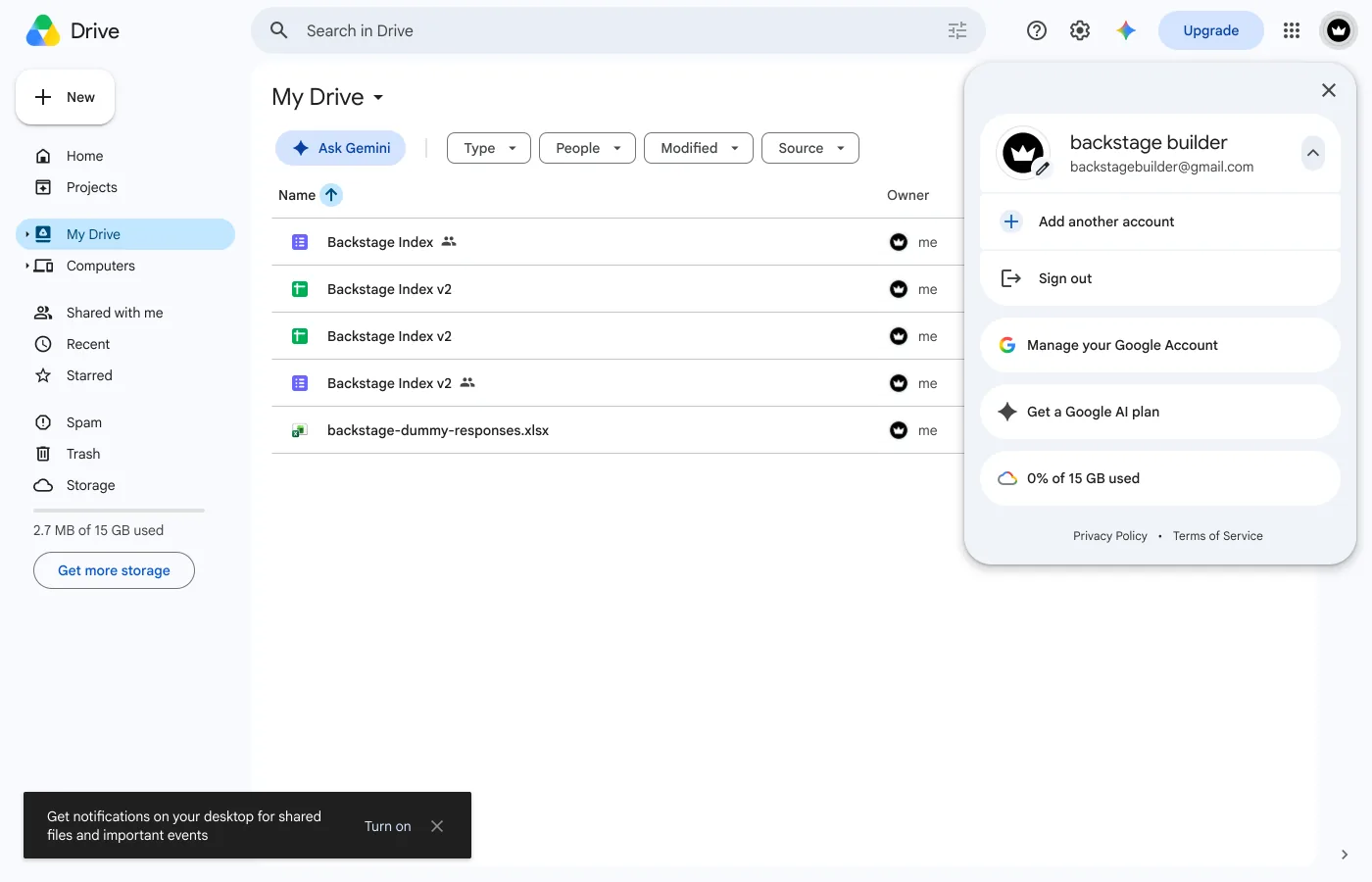
Do this first, before the copy. Go to drive.google.com and click your profile picture, top right. Whatever address it shows is the account all of this lands in, and the address your results will be sent from.
The mistake worth catching early
People often think they're in their company account when Drive is actually signed in as a personal @gmail.com, usually the one the browser was already logged into. Copy the template there and every result arrives from an address that isn't your brand.
If results must come from a company domain, that's a question for whoever administers your Workspace, not a setting in this tool. What you can change is where replies go: email_reply_to on the config sheet.
Copy the sheet
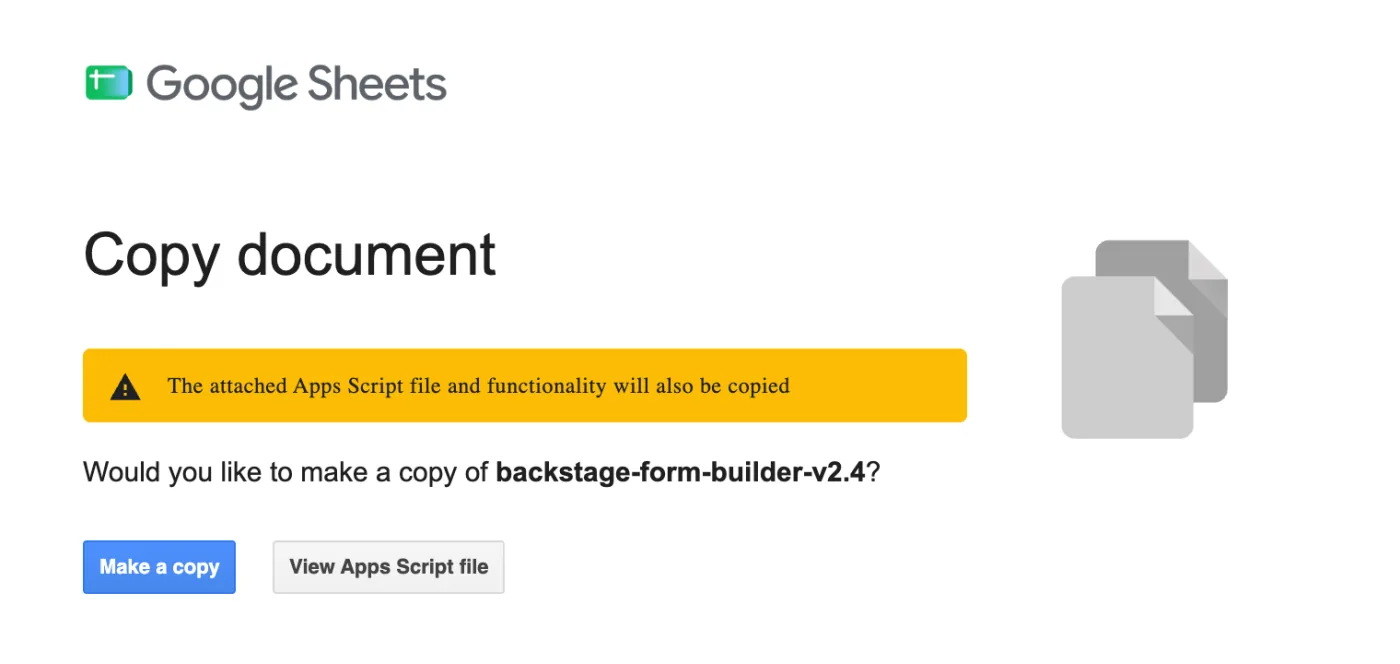
Opening the copy link puts a spreadsheet in your Drive with the Backstage script already attached. Google confirms before anything is added to your account. The copy arrives with the sample survey already loaded: that's your working example, and you'll replace its contents with your own.
Rename it, before anything else
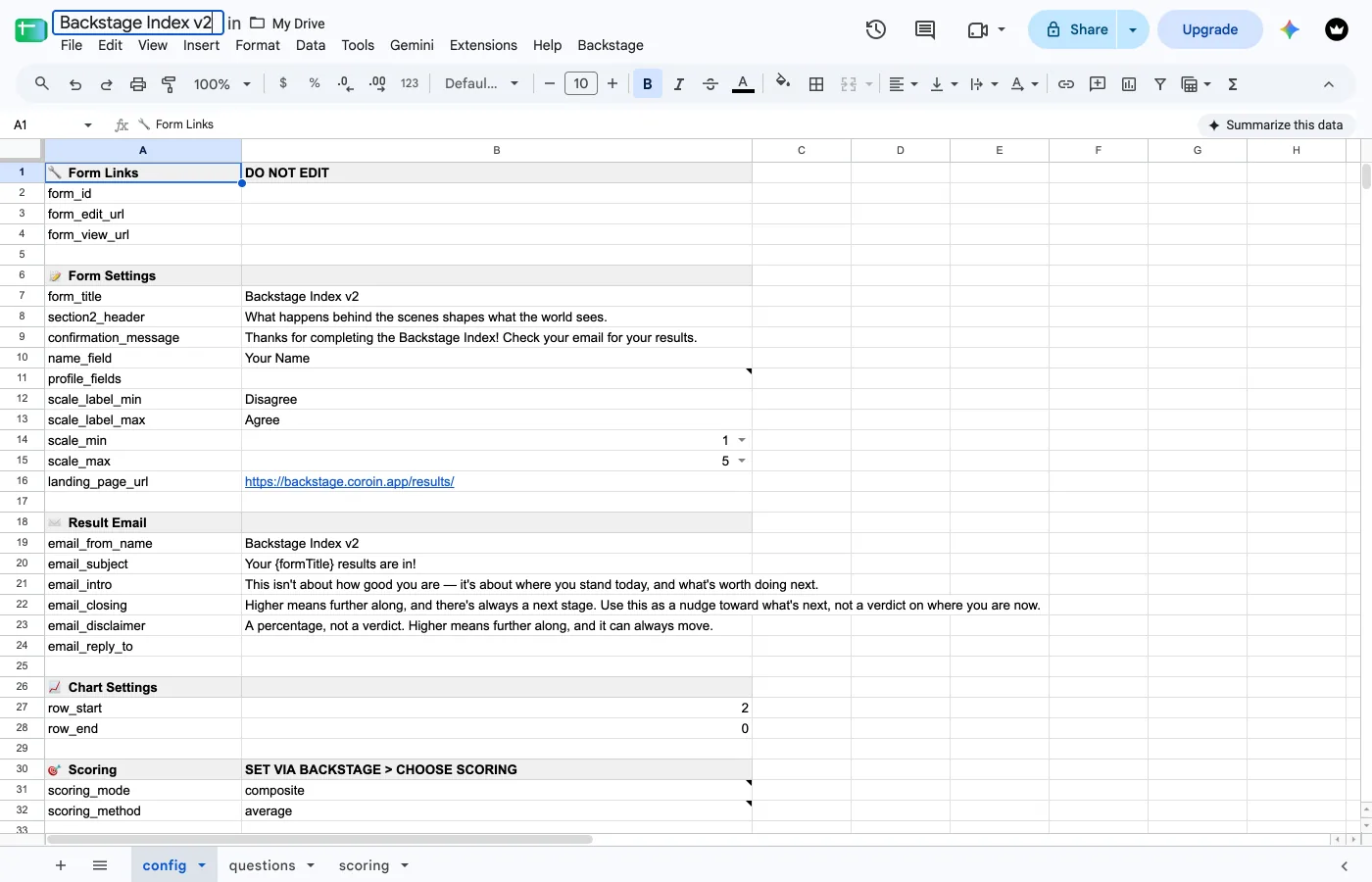
Your copy arrives called Copy of backstage-form-builder-v2.4. Rename it now, to whatever your diagnostic is actually called. Do it before you send your first result, because every chart gets archived to a Drive folder named after the sheet, and renaming later leaves that folder stuck with the old name.
Renaming the spreadsheet does not rename the Google Form: that comes from form_title on the config sheet.
Open it and wait for the menu
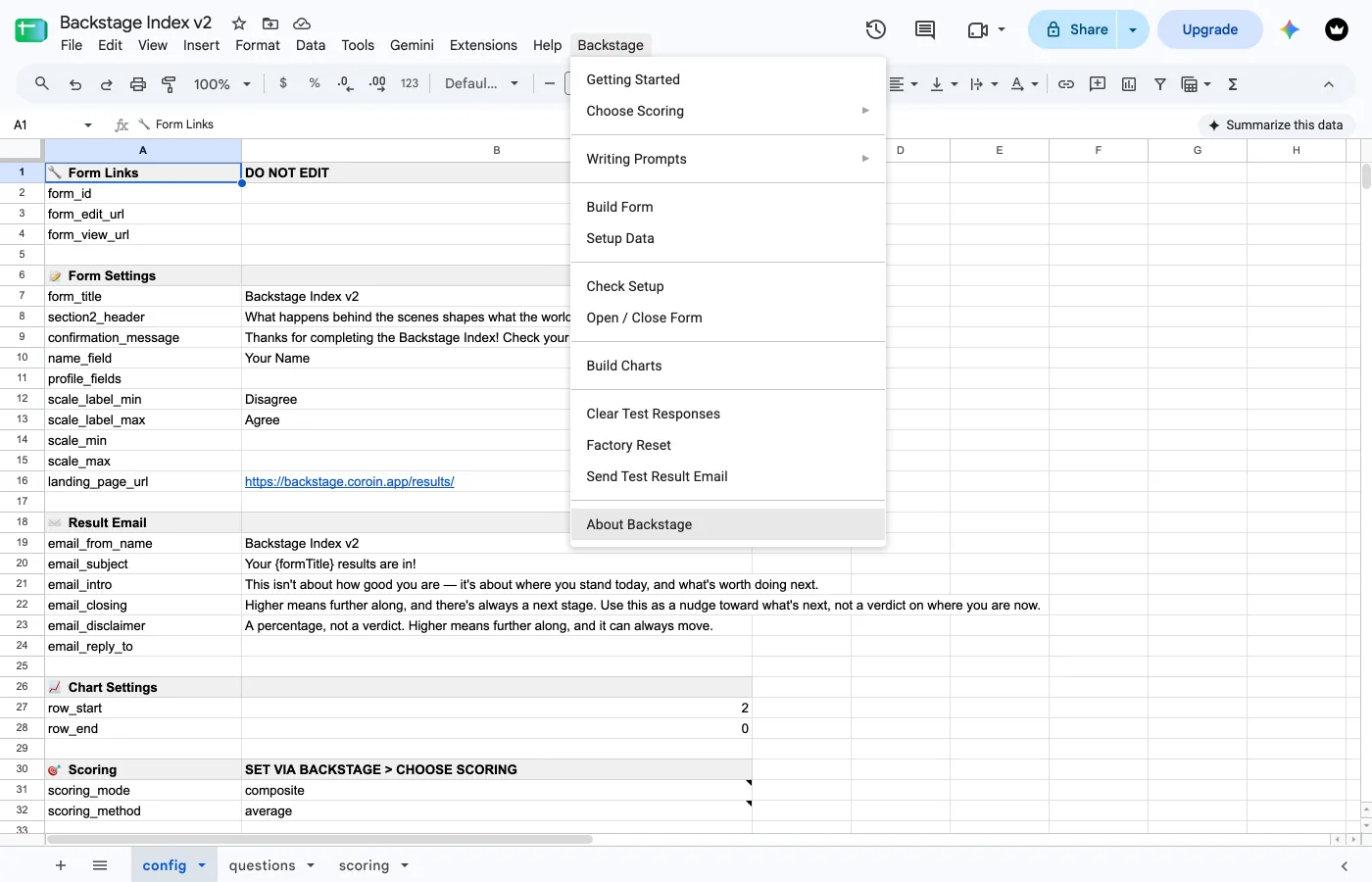
A Backstage menu appears in the menu bar, next to Help. It can take a few seconds on first open. It's ordered as the actual journey: decide it, write it, build it, check it, open it, read it.
The authorization screen
The first Backstage item you click asks Google for permission. This is the scariest moment in the whole flow, and it looks worse than it is.
Trigger it deliberately with Backstage > About Backstage. Every menu item leads here, but About is the one that only opens a panel of text, so if anything goes sideways, nothing in your sheet or Drive has actually been touched.
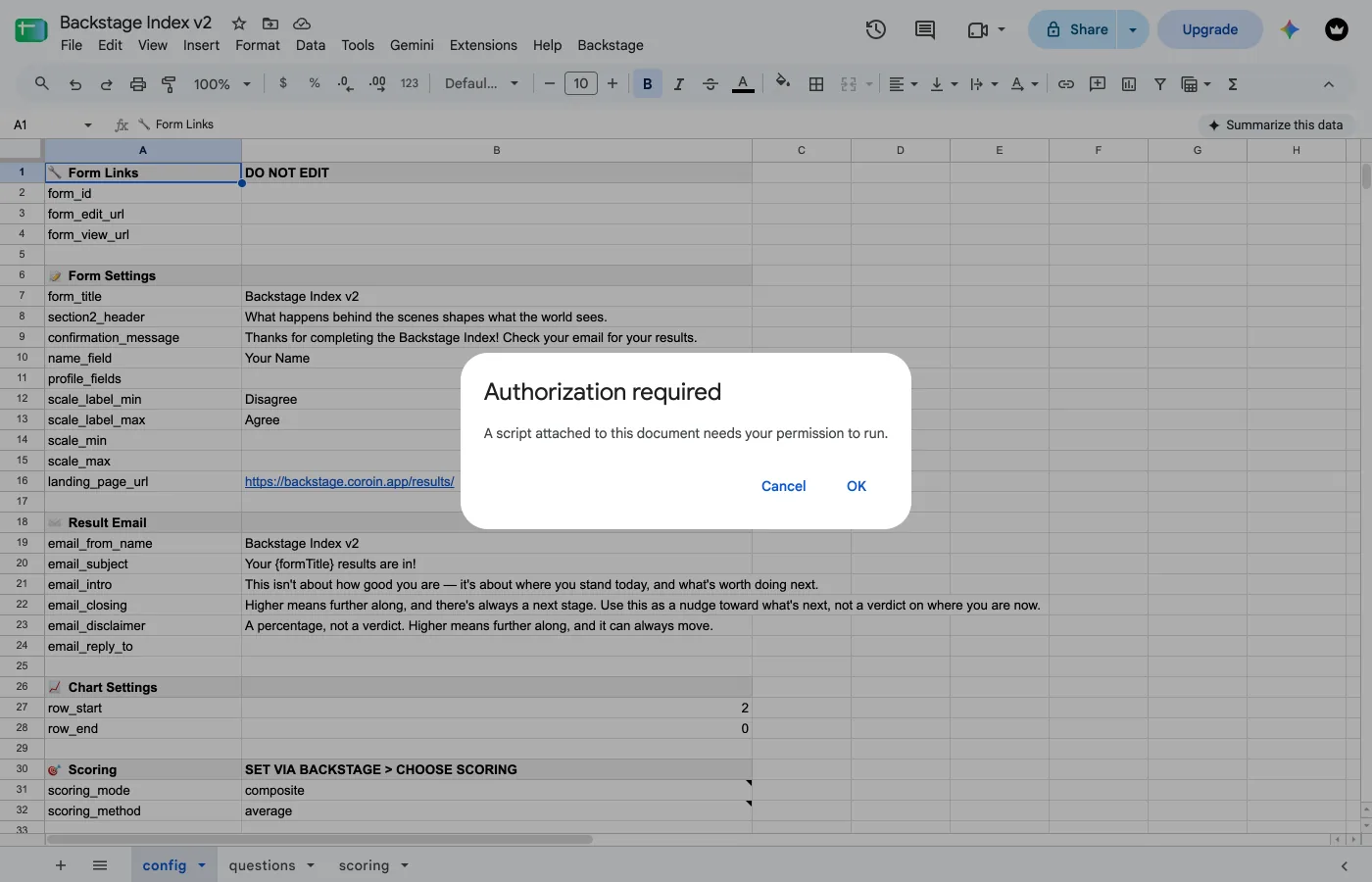
First, Apps Script's own prompt:
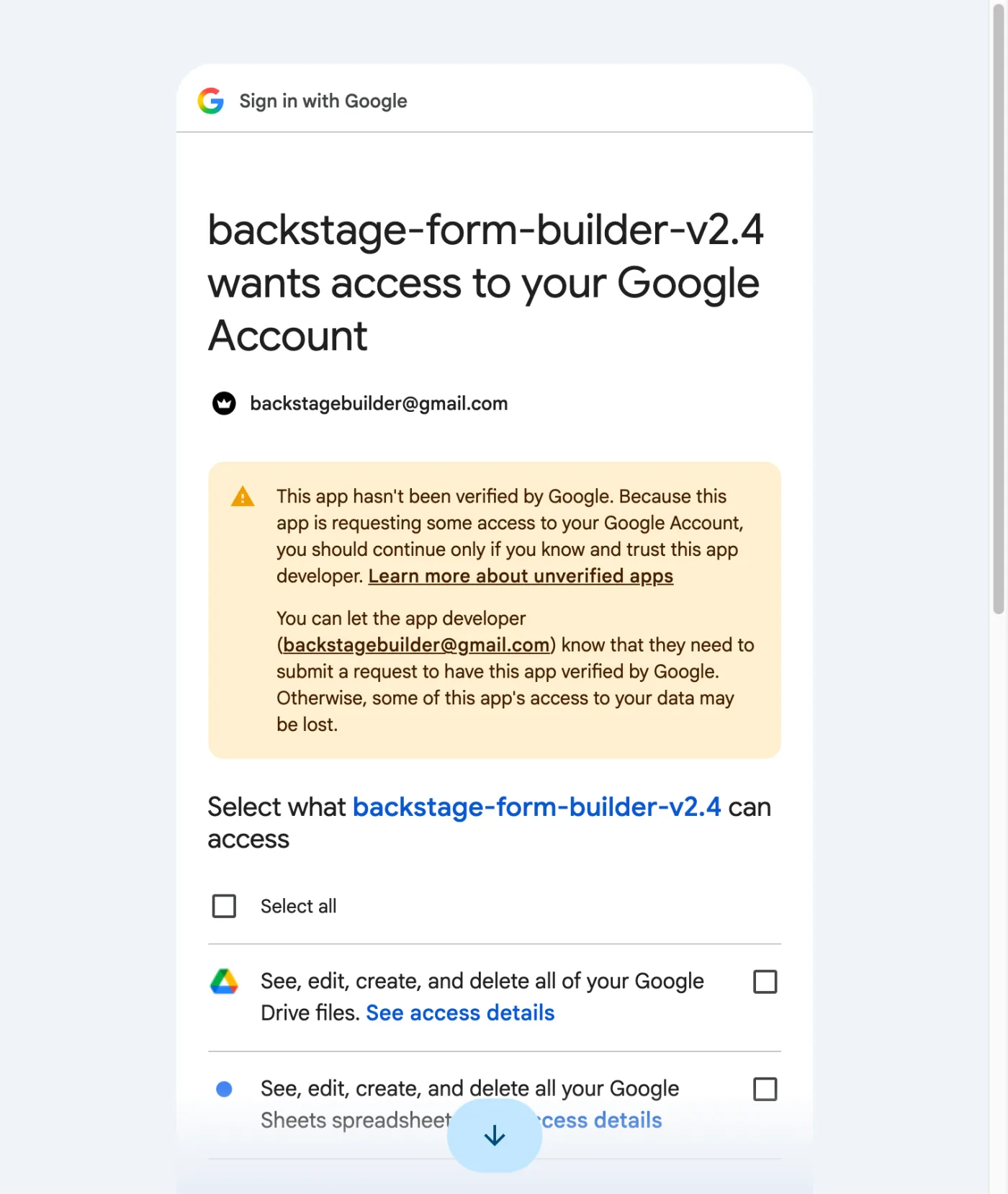
Then Google's: the one that stops people. You'll see "Google hasn't verified this app", and the only button on it is Back to safety. Don't click it. The way through is the underlined link in the red box: "Go to <project name> (unsafe)". (An older version of this screen hides that link behind Advanced, bottom left: click that first.)
Why this happens
Every copy of every Apps Script template shows this screen. Google only verifies apps published centrally, and a copied script is a fresh, unpublished one. "Unsafe" just means "unverified." You're approving the copy of the script that came with your own sheet, running as you.

Next, the permissions. Backstage asks for these, and here's what each is for:
| Permission | Used for |
|---|---|
| See, edit, create and delete your spreadsheets | Reading your tabs and writing scores back into them. |
| View and manage your forms | Building the Google Form, and opening or closing it. |
| See, edit, create and delete your Google Drive files | Creating the form, filing it next to the sheet, and saving each respondent's chart. |
| Display and run third-party web content | The Backstage menu's dialogs. |
| Manage scripts and triggers | Installing the trigger that emails a result when someone submits. |
| Send email as you | Sending the result emails. They come from your Google address, which is not configurable. |
| See your primary email address | Knowing where to send your test result. |
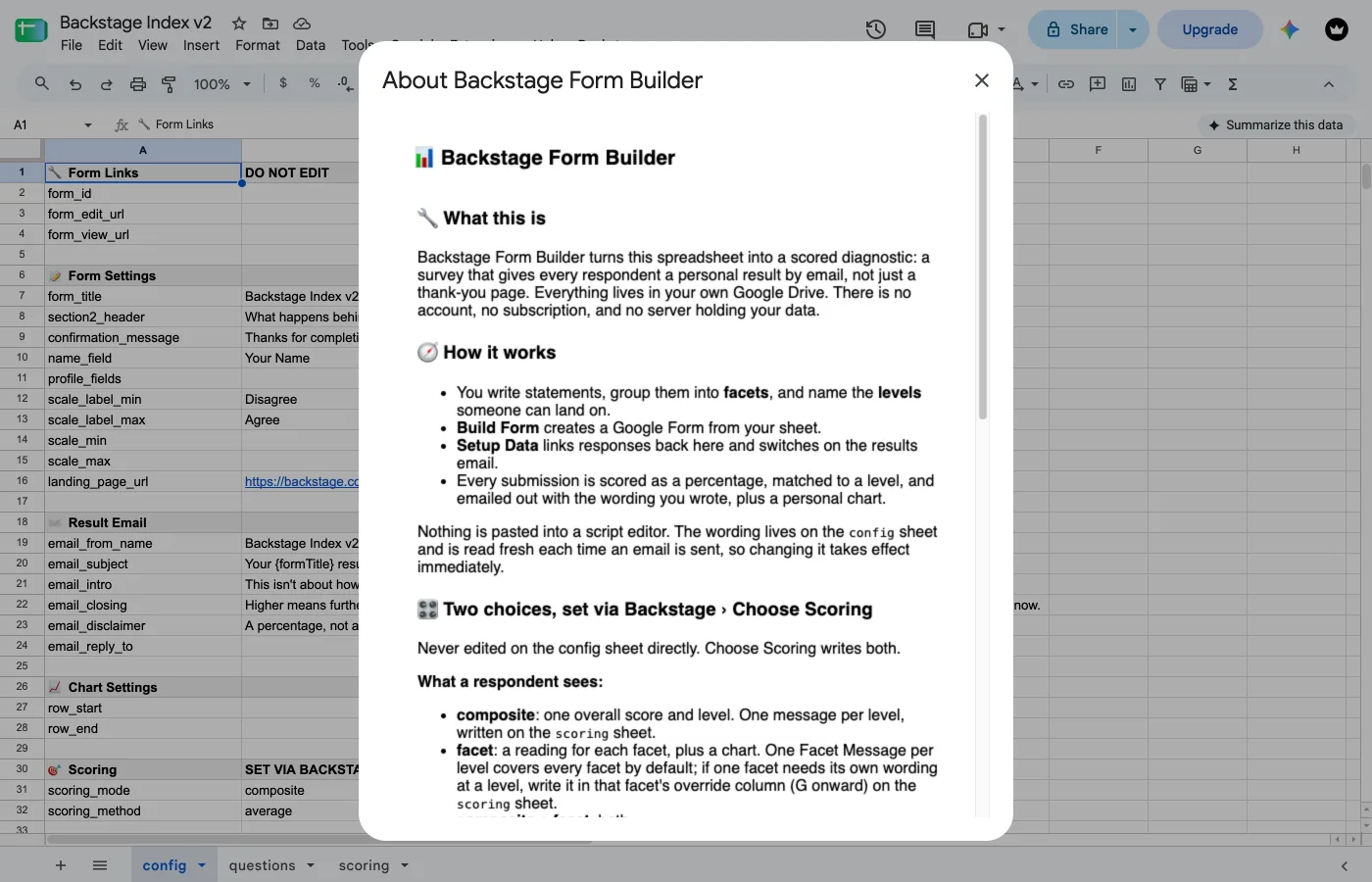
If it worked, About Backstage opens. That's also where you can check your version later:
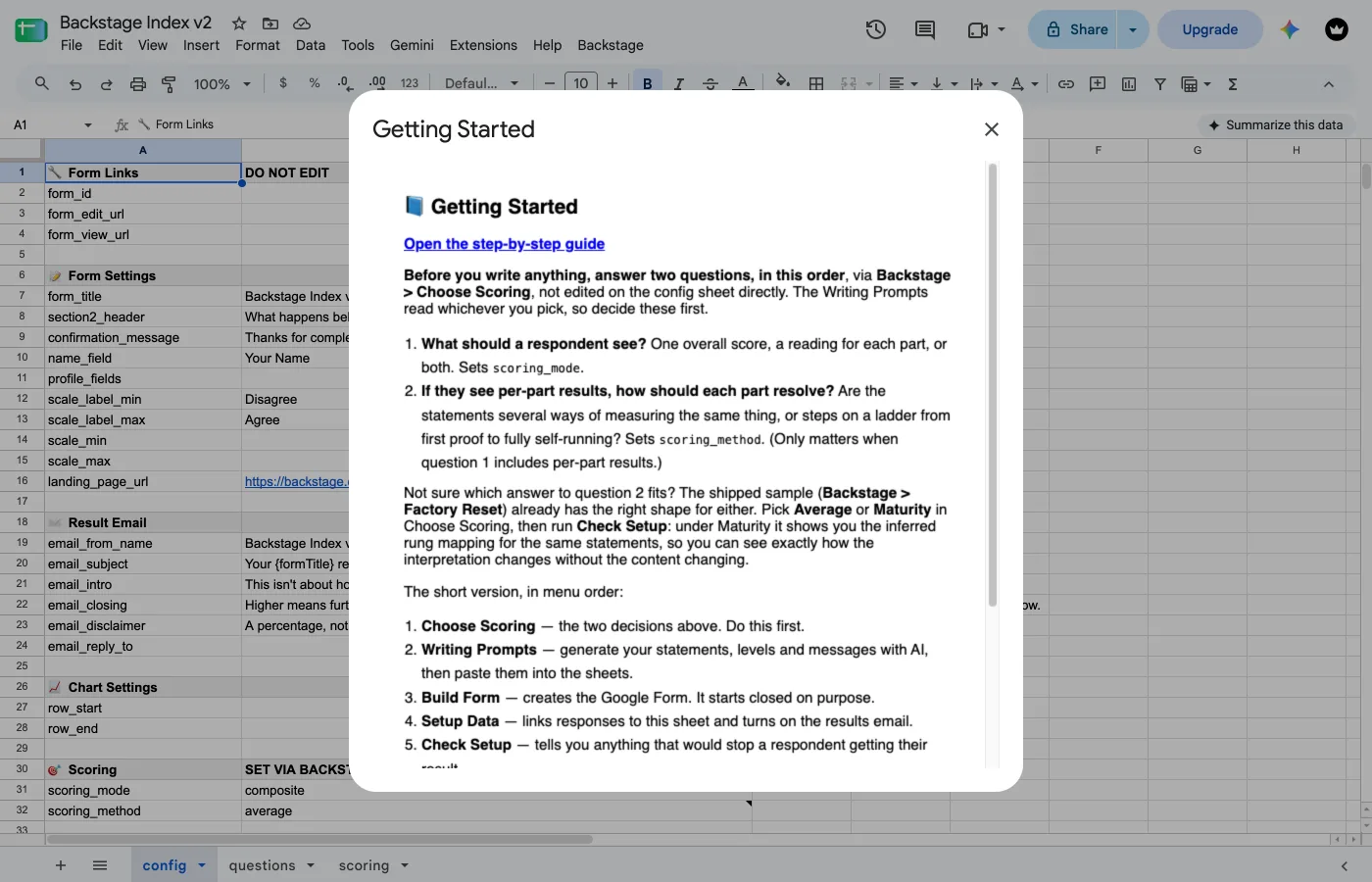
You approve this once per copy of the sheet.
Backstage > Getting Started opens a short summary of the same journey, with a link back to this page. Nothing on the sheet changes: safe to click any time.
Before you write a single statement, decide two things. Choose Scoring, right after this, is where you set them:
- What each respondent sees at the end: one overall result, a result for each facet, or both.
- If facets are shown, how each one is scored: as a trait measured several ways (Average), or as a ladder climbed in order (Maturity). Only comes up when facets are shown.
Backstage > Choose Scoring is a submenu of five choices: the only way to set scoring_mode and scoring_method. Do this before Writing Prompts: every one of the four prompts reads whichever you pick.
Composite only is the shipped default — the simplest respondent experience, one score and one message, and the right starting point unless you already know you want per-facet detail.
| Choice | A respondent sees | Each shown facet is scored as |
|---|---|---|
| Composite only | One overall score | N/A |
| Facet only — Average | A reading per facet, no overall score | Interchangeable trait measures |
| Facet only — Maturity | A reading per facet, no overall score | Ordered rungs on a ladder |
| Composite + Facet — Average | Overall score, then facet detail | Interchangeable trait measures |
| Composite + Facet — Maturity | Overall score, then facet detail | Ordered rungs on a ladder |
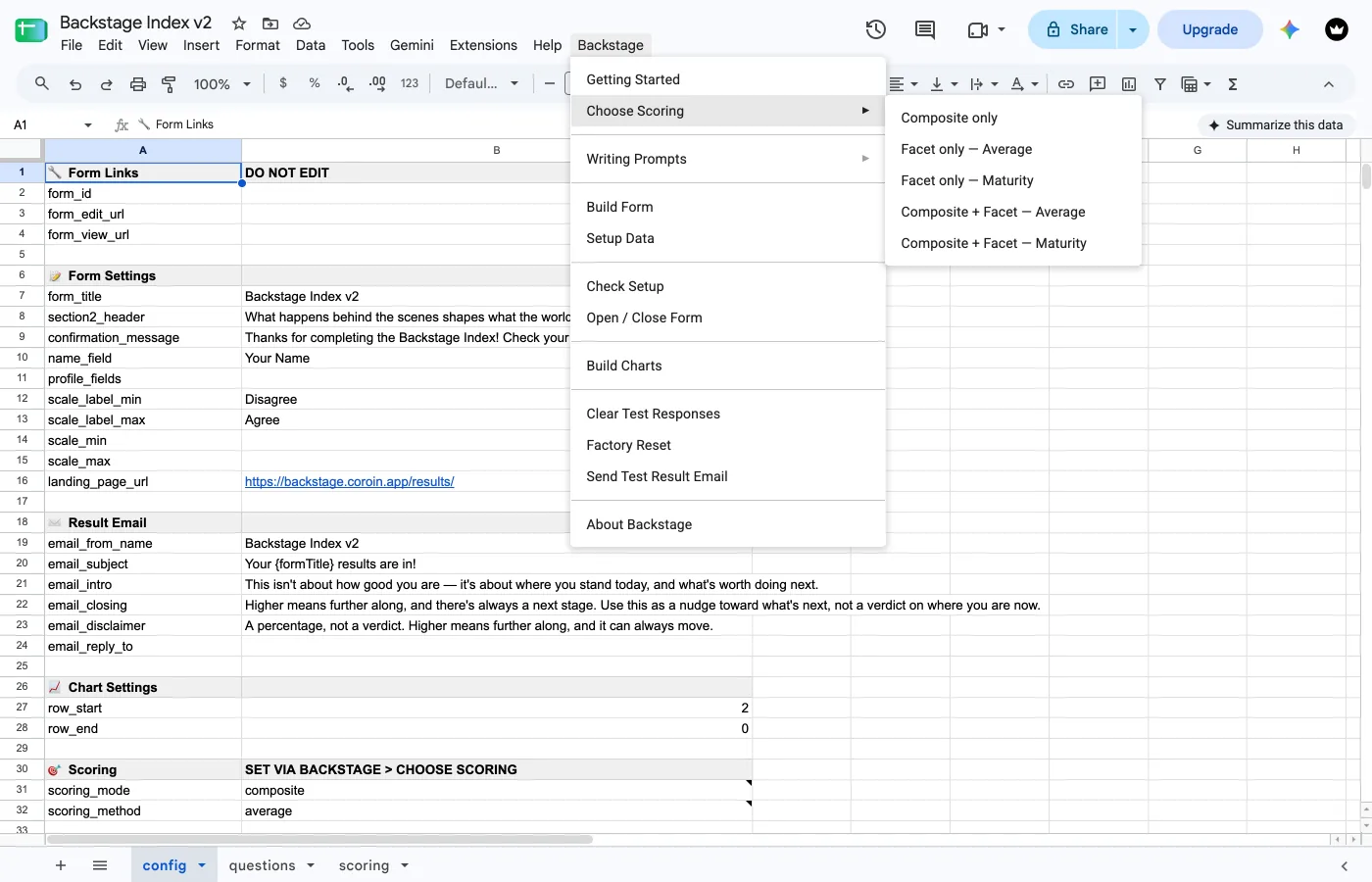
Picking a choice writes straight into the config sheet's 🎯 Scoring section, at the bottom of the sheet, marked SET VIA BACKSTAGE > CHOOSE SCORING and not meant to be hand-edited. A Maturity choice also adds two rows, clear_threshold and focus_rung; an Average choice removes them if they're there. Choosing a facet-showing option also adds the next-move rows on the config sheet (next_move_one / next_move_many, plus next_move_none under Maturity); Composite only removes them, since nothing reads them there. See Write Your Email Copy.
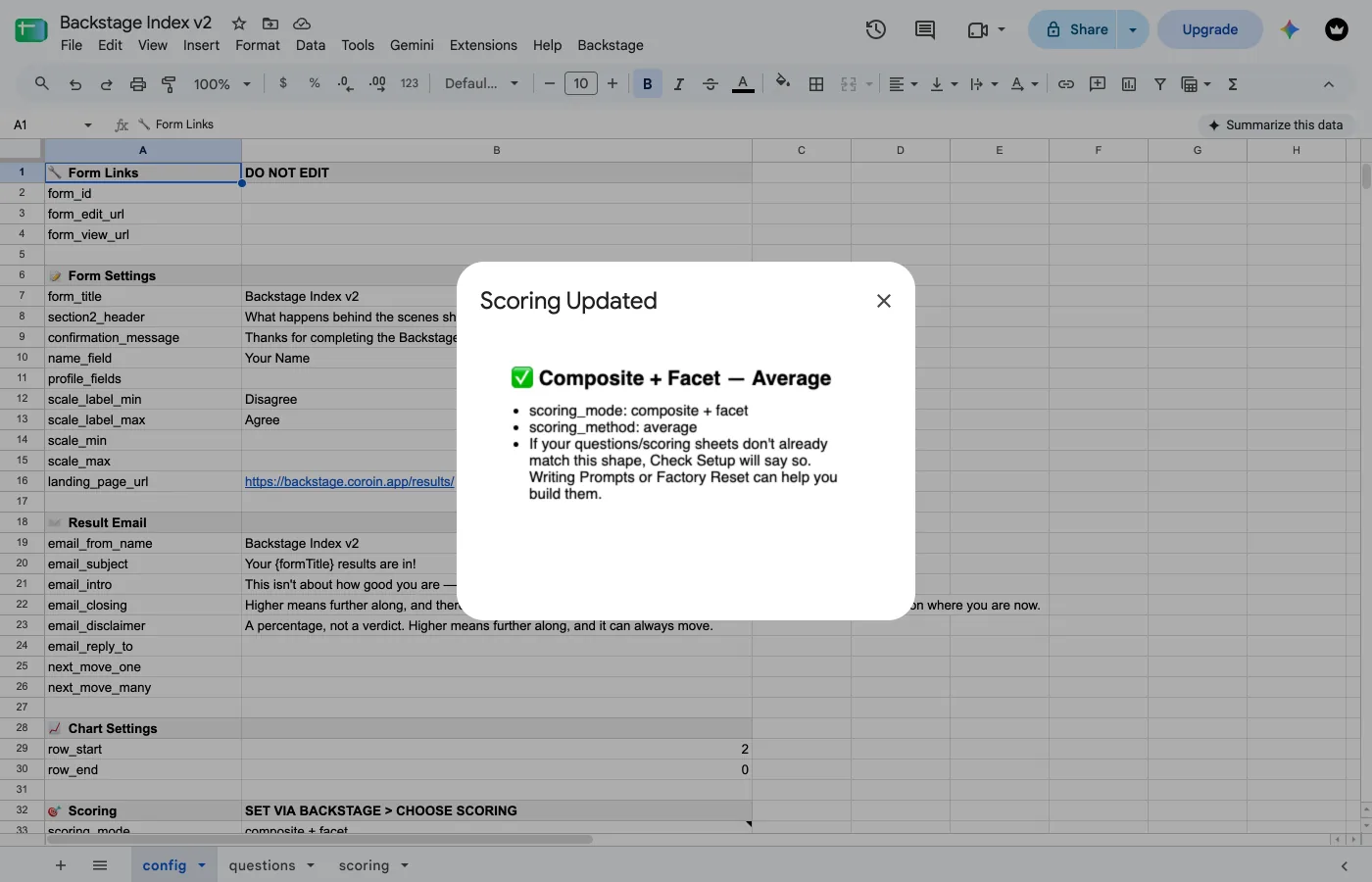
Composite is always a plain average of every statement, whichever facet method you pick. Average vs. Maturity only changes how a shown facet resolves. An overall score, when you're showing one, works exactly the same either way. That's also why there are five choices, not the six a straight mode-times-method grid would suggest: "Composite only" doesn't need a facet method, because there's no facet to apply one to.
Average or Maturity: which one?
- Average: a facet whose statements are several ways of measuring the same thing, like a "confidence" facet sensed a different way by each statement. The right default whenever you're not sure.
- Maturity: a facet that's actually an ordered ladder, like a "systems" facet that goes from "it works once" to "it runs without me." A respondent has to clear a lower rung before a higher one counts; a later rung clearing on its own never lifts an earlier gap.
Not sure which fits? Factory Reset loads a worked example either way: the same shipped content scores correctly under both.
Changed your mind after writing statements? Run Choose Scoring again, then run Setup Data. See Writing Prompts below for exactly what changes under each choice.
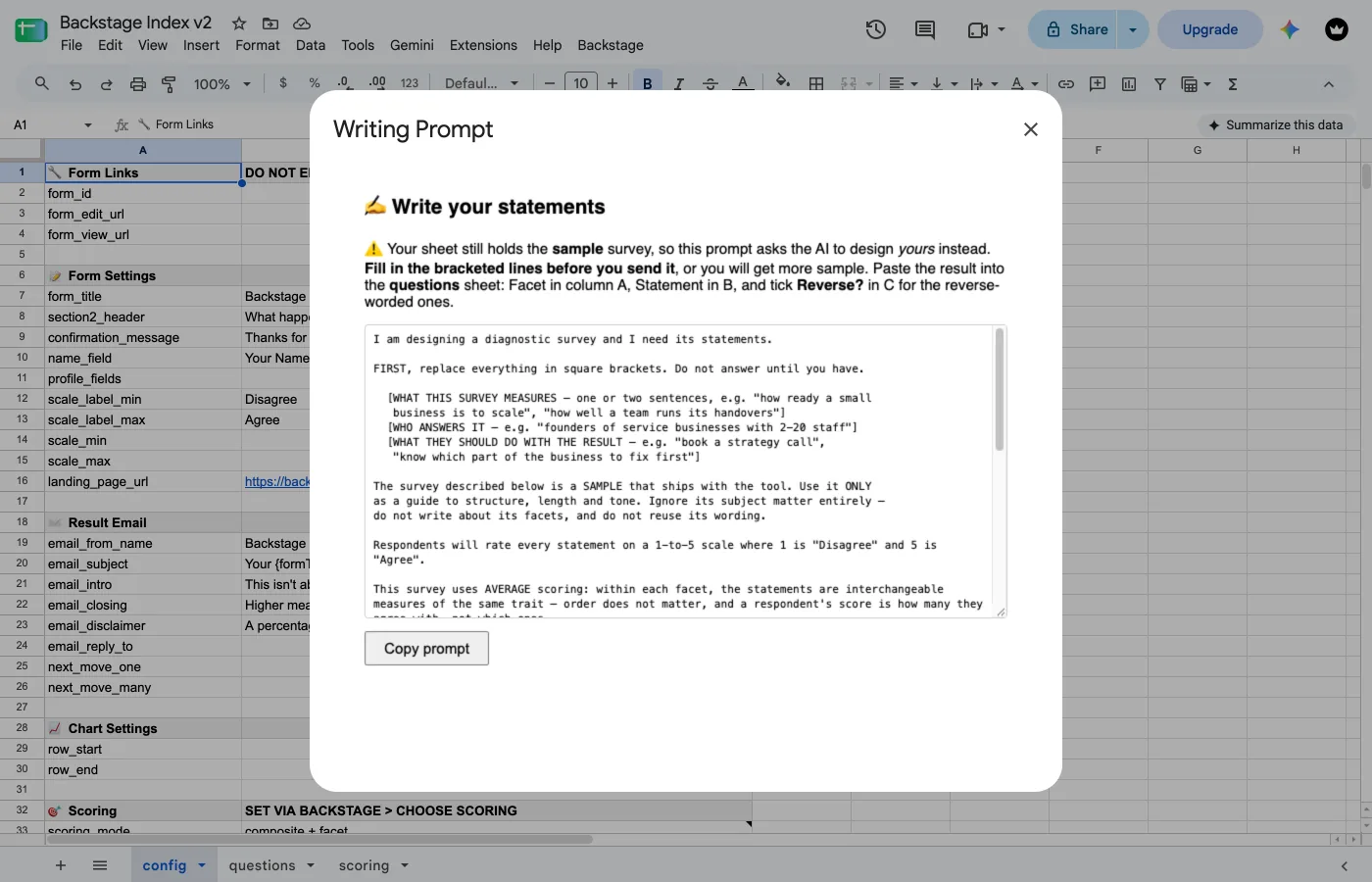
This is the work. The four prompts under Backstage > Writing Prompts generate the content of your diagnostic with an AI, and each one is built from your own sheet: it knows your facets, your levels, your statements, and which are reverse-worded.
Each prompt opens in a dialog with a Copy prompt button. Copy it, run it in your AI, paste the answer back into the sheet it names.
On a fresh copy, read the brackets
Your sheet still holds the sample, so each prompt opens with bracketed lines about your subject, respondents, and goal. Fill those in before you send it, or you'll get more sample content back.
Average or Maturity was already decided
Whichever you picked in Choose Scoring shapes every prompt below: the same four prompts, asking for a different shape of content depending on your choice. Changed your mind? Run Choose Scoring again first, then re-run whichever prompts you need.
1. Write Your Statements
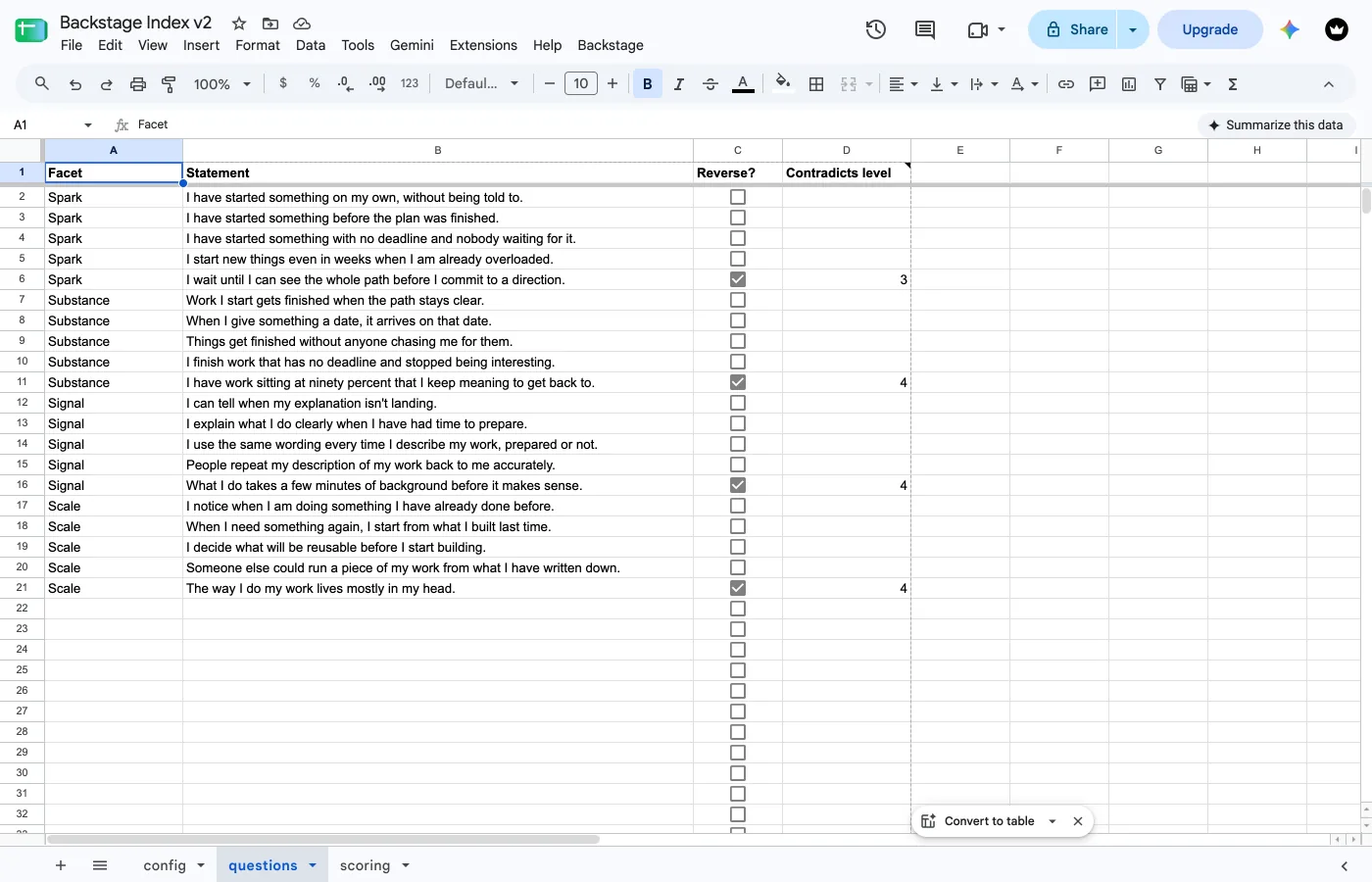
Produces three columns for the questions sheet: Facet, Statement, Reverse, and under Maturity a fourth, Contradicts level (see Catching optimistic answers).
Facets are the distinct parts of what you're measuring — you still group your statements into facets even under Composite only, since the composite score is a plain average across all of them. Put your facet names in column A first, one row per planned statement, and the prompt sizes itself to them, or run it without any and it proposes some.
The order you list your facets in is the order everyone sees. Facets are read from column A in the order they first appear, and that order sets the facet columns on the data tab and the order of the spokes on any cohort chart you build — and, if you show facets in the result, the order readings appear in each respondent's email too. Alphabetical is rarely the best answer. Put them in whatever order tells your story, and settle it before you build the form.
Reverse? in column C is a checkbox: tick it when disagreeing is the mature answer. One per facet is the usual shape.
Writing statements for a Maturity facet
Under Maturity, a facet needs one statement per rung, written in order from the earliest proof to the most advanced, plus one reverse statement. The writing prompt drafts these rungs in order from your own content: your job is to edit the wording, not invent the structure.
The reverse statement is never a rung, because a failure mode is not a step up. Under Maturity it does one job, if you let it: it catches optimistic answers. See below.
A three-rung "systems" facet, for example: rung 1, "It has worked at least once." rung 2, "It works most weeks without me stepping in." rung 3, "It runs without me." Plus one reverse statement, such as "It only runs when I personally drive it."
Catching optimistic answers
People rate themselves generously, and the top levels are where it shows: it's easy to agree with "it runs without me" on a good day. The negative statement in each facet (the one with Reverse? ticked) is your check. It says the opposite of a high level, such as "It only runs when I personally drive it."
In the Contradicts level column (D) on that row, type the number of the level it contradicts. If a respondent agrees with the negative statement (4 or 5 on a 1 to 5 scale), that level doesn't count for them, however they answered it, so the facet stops just below it. If they disagree, or skip it, nothing changes.
Point it at the first level above halfway: level 3 on a four-level ladder, Scale in the example below. It's the hardest one to reach honestly, and the one optimists most often claim. You can name any level, but Check Setup will remind you that the check is meant for the top.
An example, on a ladder of Idea, Prove, Repeat, Scale and Sustain, with the negative statement "I start my work from a blank page each time" set to level 3:
| Answers | Without the check | With Contradicts level 3 |
|---|---|---|
| 4 to every statement, the negative one included | Sustain (every level agreed) | Repeat: agreeing with "blank page each time" cancels Scale, so the facet stops below it |
| 4 to every level, 2 to the negative one | Sustain | Sustain: they disagreed, so nothing is cancelled |
Leave the cell blank and the check is off: the negative statement is asked and recorded, and it changes nothing. Under Average the column is ignored. The sample survey comes with it filled in.
Why the order matters
In a Maturity facet, a respondent sits at the highest rung they have truly reached: never an average of everything they tried. A later rung doesn't count until the earlier ones hold. That's why the statement order matters, and why Check Setup reads it back to you before anyone takes the survey.
Rungs have to get harder, not just come in an order. Because the climb stops at your first miss, a ladder whose rungs are all about equally hard has only two outcomes: clear them all, or fail at rung one. The middle rungs never get used, your distribution chart comes out as two bars, and the calibration report marks everything between as never used.
The test is difficulty, not topic. Rung 1 should be the easiest honest thing a respondent could say about that facet, and the last rung the hardest to fake. If you could imagine someone clearing rung 3 while genuinely failing rung 1, they are not rungs yet: they are four measures of the same trait, which is what Average is for.
2. Name Your Result Levels
Produces the scoring sheet's ladder columns: Composite Label, Composite Min %, Composite Message, Facet Label, Facet Min %.
You're naming two ladders, not one. The overall result gets one set of labels; a single facet gets a different set, in different words, at different thresholds, because a facet reading has to sit inside a sentence: your Signal is Established. The prompt hands you calibrated numbers for both: keep them unless you have a reason not to.
There's no maximum column: a level runs from its Min % up to the next one's. The bottom level of both ladders must start at 0, or anyone below it gets no result at all.
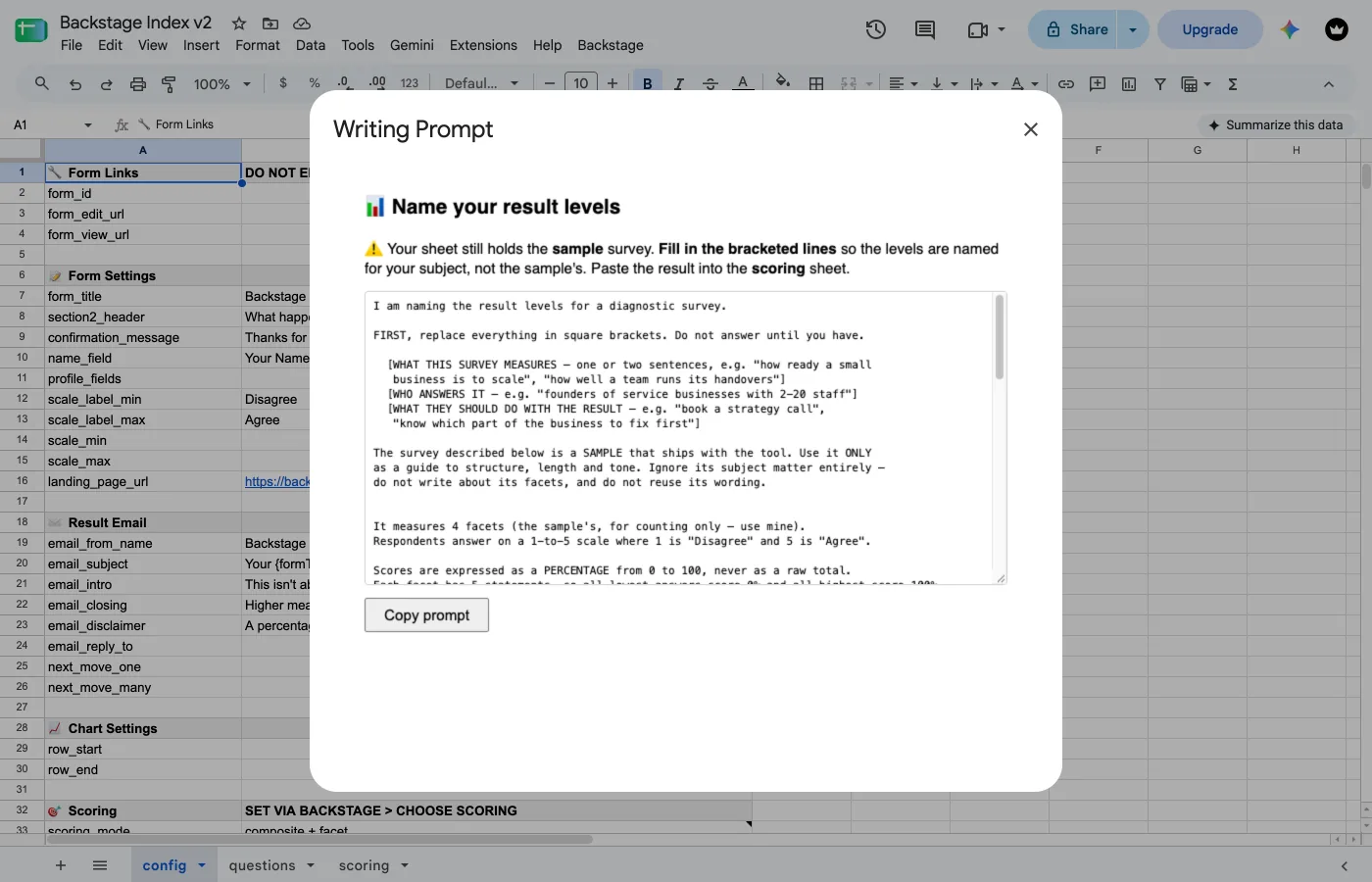
Picked Facet only in Choose Scoring? The Composite columns (A–C) on this sheet just get hidden, not cleared. Switch back to a Composite-including choice later and whatever you wrote is still there.
Naming a Maturity ladder instead of a threshold table
Under Maturity, this step works differently: there's no Min % to set at all. You're naming the rungs themselves, floor first, in the same Facet Label column: one label per rung, plus one more for the floor. Leave that facet's Min % cells blank; the ladder reads by row order, not by threshold.
3. Write Your Result Messages
Under Composite only, this writes the five Composite Message entries on the scoring sheet — the paragraph a respondent reads under their overall level. There's no per-facet wording to write in this mode; nothing on the respondent's side ever reads it.
Produces one message per level for the Facet Message column (F) on the scoring sheet — written generic, so the same wording reads true for whichever facet the respondent is looking at. If you also show an overall score, this same prompt drafts the five Composite Message entries too.
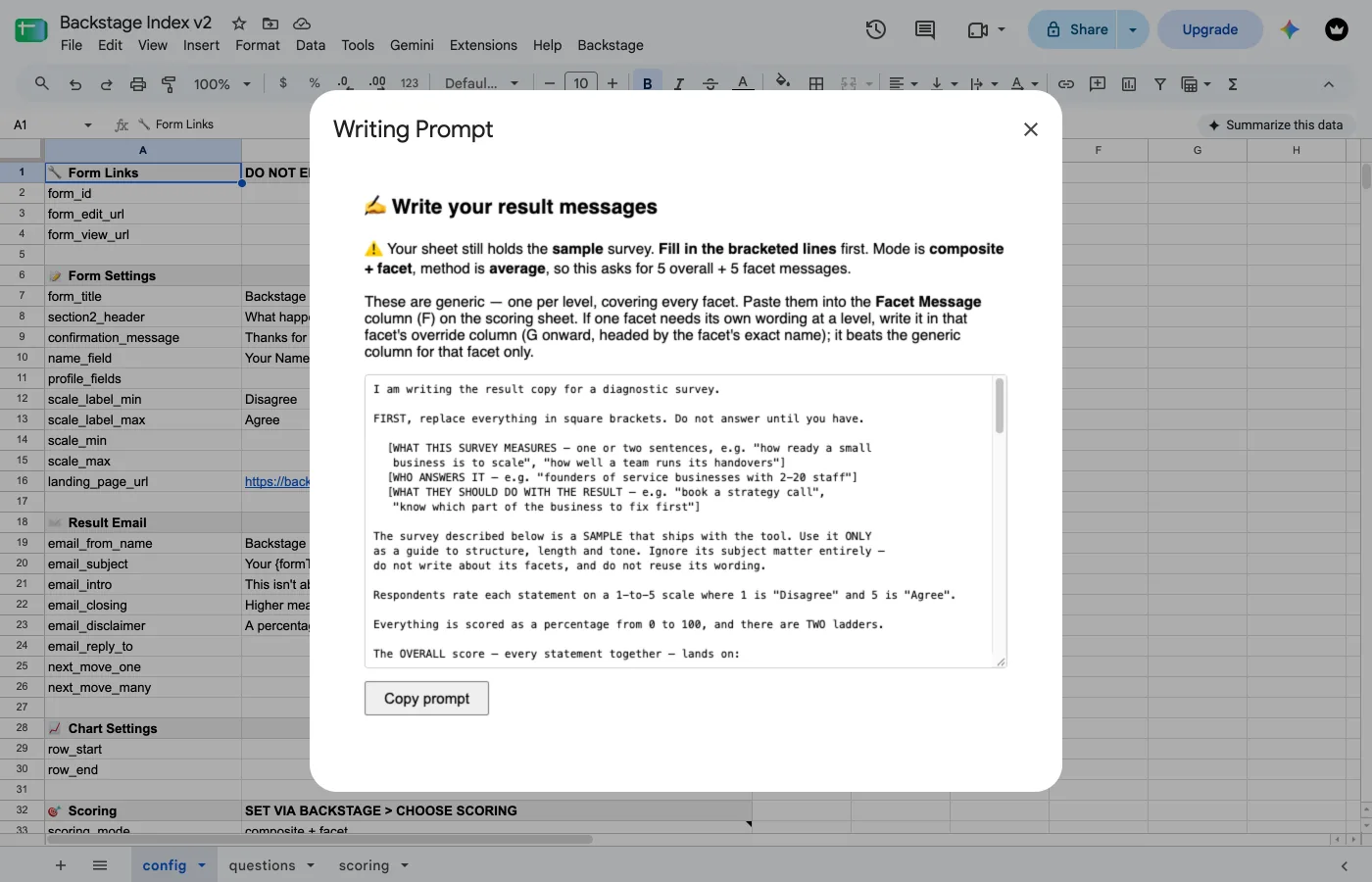
Want different wording for one facet?
Use the override columns on the scoring sheet: column G onward, one per facet, each headed with the facet's name. A cell you fill in there beats the generic Facet Message (column F) for that one facet at that one level, and a blank cell just inherits column F. Optional, and most authors never touch it.
Several facets landing on the same message is normal, and fine — that's exactly what generic wording is for. The result email groups them into one line ("Spark, Substance and Signal: Established") instead of repeating the sentence three times.
4. Write Your Email Copy
Under Composite only, produces three short pieces for the config sheet: email_intro, email_closing, email_disclaimer. There's no next-move nudge to write here — nothing to nominate when there's only one score to report.
Produces those same three pieces, plus next_move_one and next_move_many — five in total. If any facet is scored as Maturity, two more: next_move_lowest, shown when nobody sits at the nominated rung (it names the facet or facets at the lowest level, since a level can't be skipped), and next_move_none, shown when every facet is already at the top.
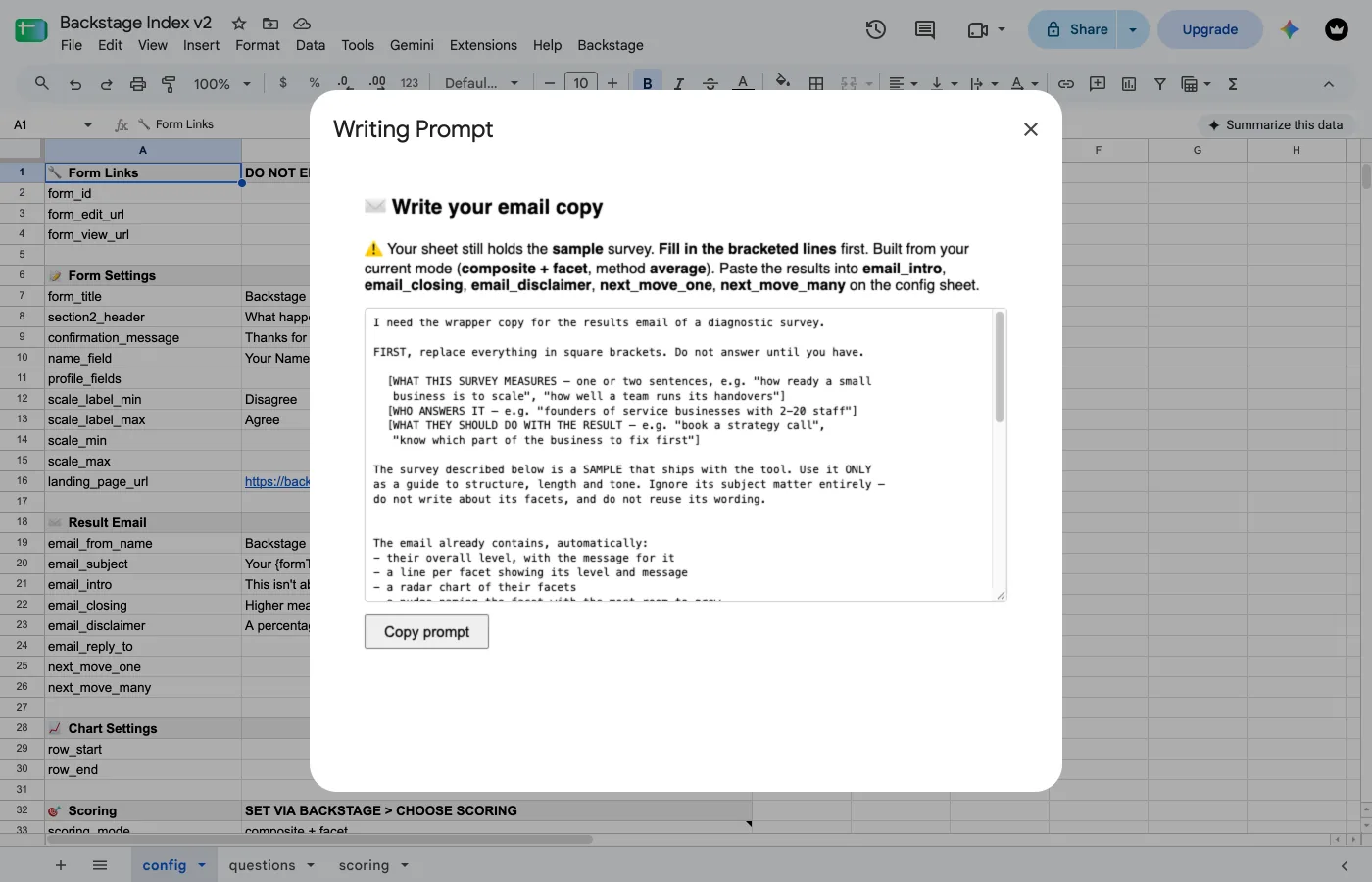
These wrap around the automatic content, so they shouldn't repeat anyone's score.
Keep {facets} exactly as written in the next-move lines: that's where the tool inserts the facet(s) it nominates as the next move, the one with the most room to grow under Average, the one at the focus rung (proven, not yet past it) under Maturity, or, with nobody there, the lowest one. next_move_lowest also takes {level}, the name of that lowest level. One line serves one facet or several, so write it to read either way: "Your next move is {facets}, at {level}."
Nothing here is pasted into a script editor. The wording lives on the config sheet and is read fresh every time an email sends, so an edit takes effect immediately.
While you're on the config sheet
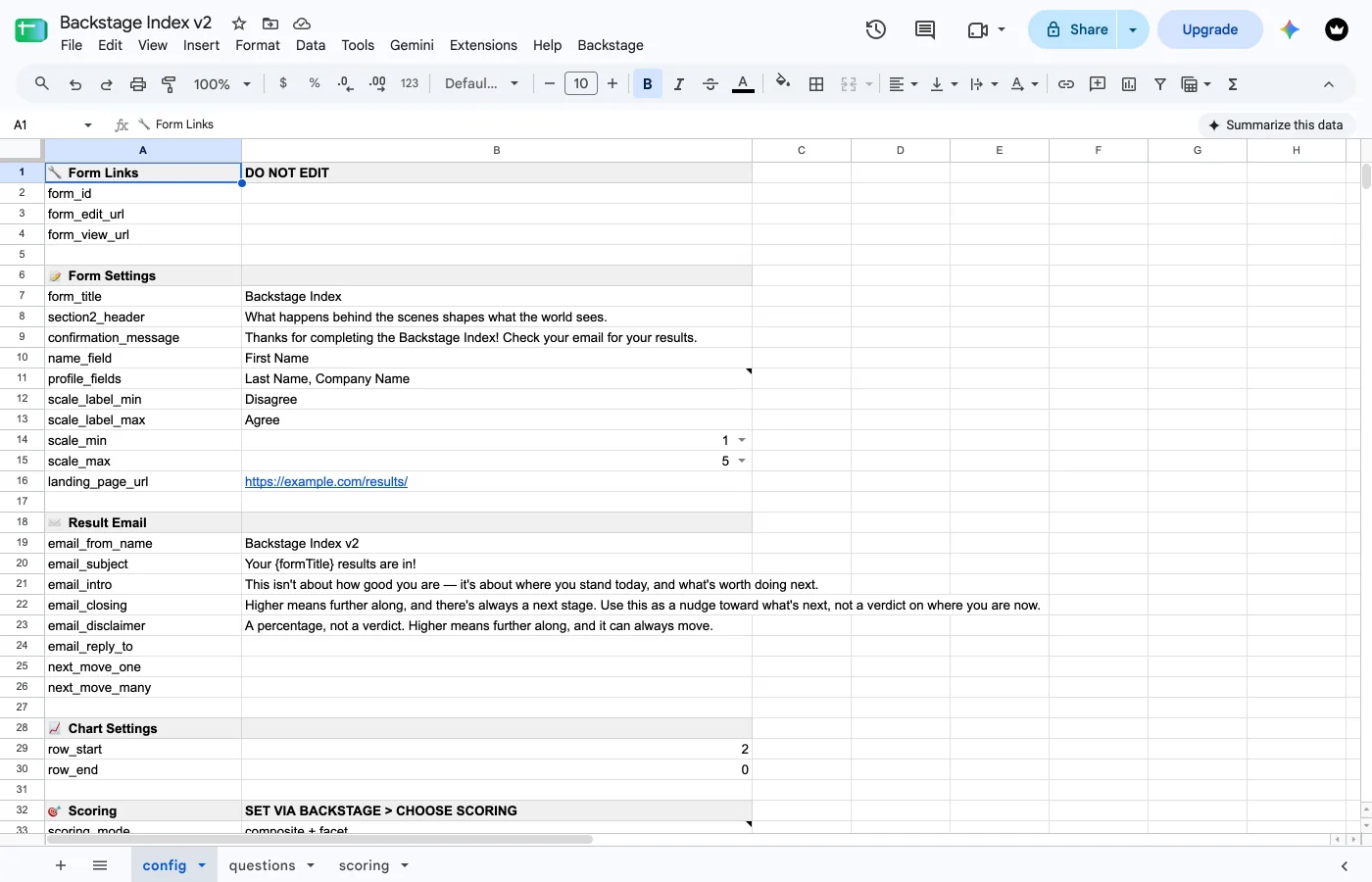
scoring_modeandscoring_methodlive at the bottom of this sheet, in the 🎯 Scoring section, set via Backstage > Choose Scoring, not typed in here.landing_page_urlships pointing at the sample's results page. Set it to yours, or clear it to leave the link out. Check Setup blocks you until you do.scale_min/scale_maxset the answer scale: dropdowns (0 or 1 for min, 3 through 10 for max). Change them before Build Form; a later change scores every response against a range nobody saw.clear_threshold/focus_rung: Maturity-only, added automatically by Choose Scoring and ignored under Average.clear_thresholdis the answer that counts as clearing a rung (defaults to the top two points of the scale);focus_rungis which rung gets nominated as the next move (defaults to 2, just above the floor).level_basesets the number the floor shows as on the result radar: 1 by default, or 0 if your ladder calls its floor "level 0", which numbers the radar 0 to 4 on a five-label ladder. It changes only the chart's numbers, never the scoring.next_move_one/next_move_many, plusnext_move_lowest/next_move_noneunder Maturity: only exist on the sheet when scoring_mode shows a facet — Choose Scoring adds or removes them to match. Composite only never has these rows at all.profile_fieldsasks for anything else you want to know about the respondent. See below.email_from_name,email_subjectandemail_reply_toshape the result email's header (see below).
The email header, and {token} placeholders
Three more email fields aren't part of the prompt above. Set these by hand:
email_from_name: the display name on the "From" line, e.g. Backstage Index v2. The address itself is always the account you authorized with.email_subject: ships asYour {formTitle} results are in!email_reply_to: where a reply actually lands. Leave blank to use the sending account.
These placeholders fill in automatically, each in specific fields:
| Placeholder | Becomes | Works in |
|---|---|---|
{formTitle} | your form_title | email_subject |
{facets} | the facet(s) nominated as the next move | next_move_one, next_move_many, next_move_lowest |
{level} | the level the lowest facets sit at | next_move_lowest |
Type them exactly as shown, braces included. Elsewhere, or misspelled, they just mail out as literal text.
Asking who they are: profile_fields
A comma-separated list (Company, Role) and each one becomes a question on the form. Ships empty, so the sample asks for a name and nothing else.
- Never scored. They arrive as their own columns on the data tab, for you to segment or filter by.
- Optional for the respondent. Only the name is required.
- They sit with the name field, in section 1, never scattered among your statements.
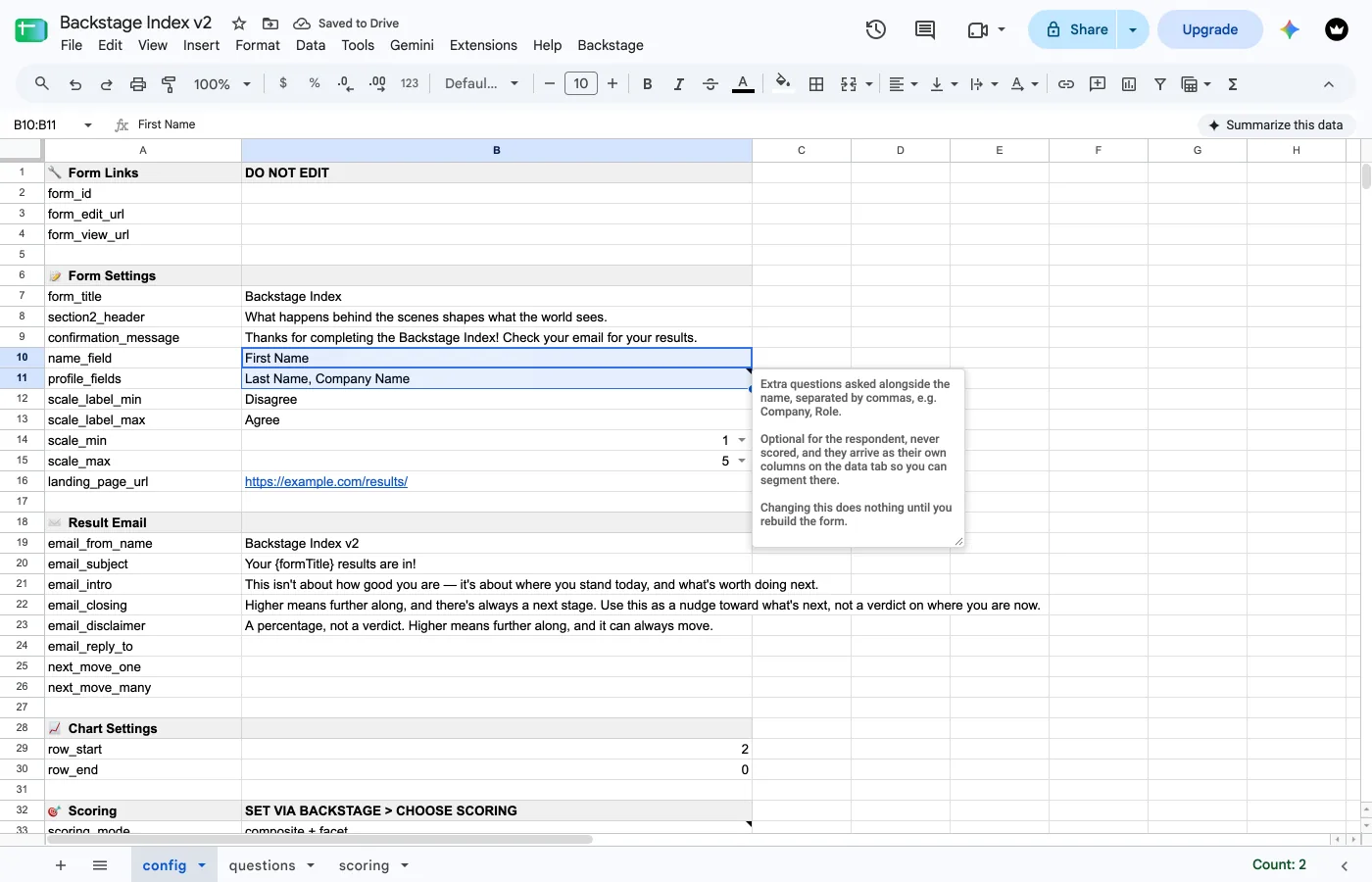
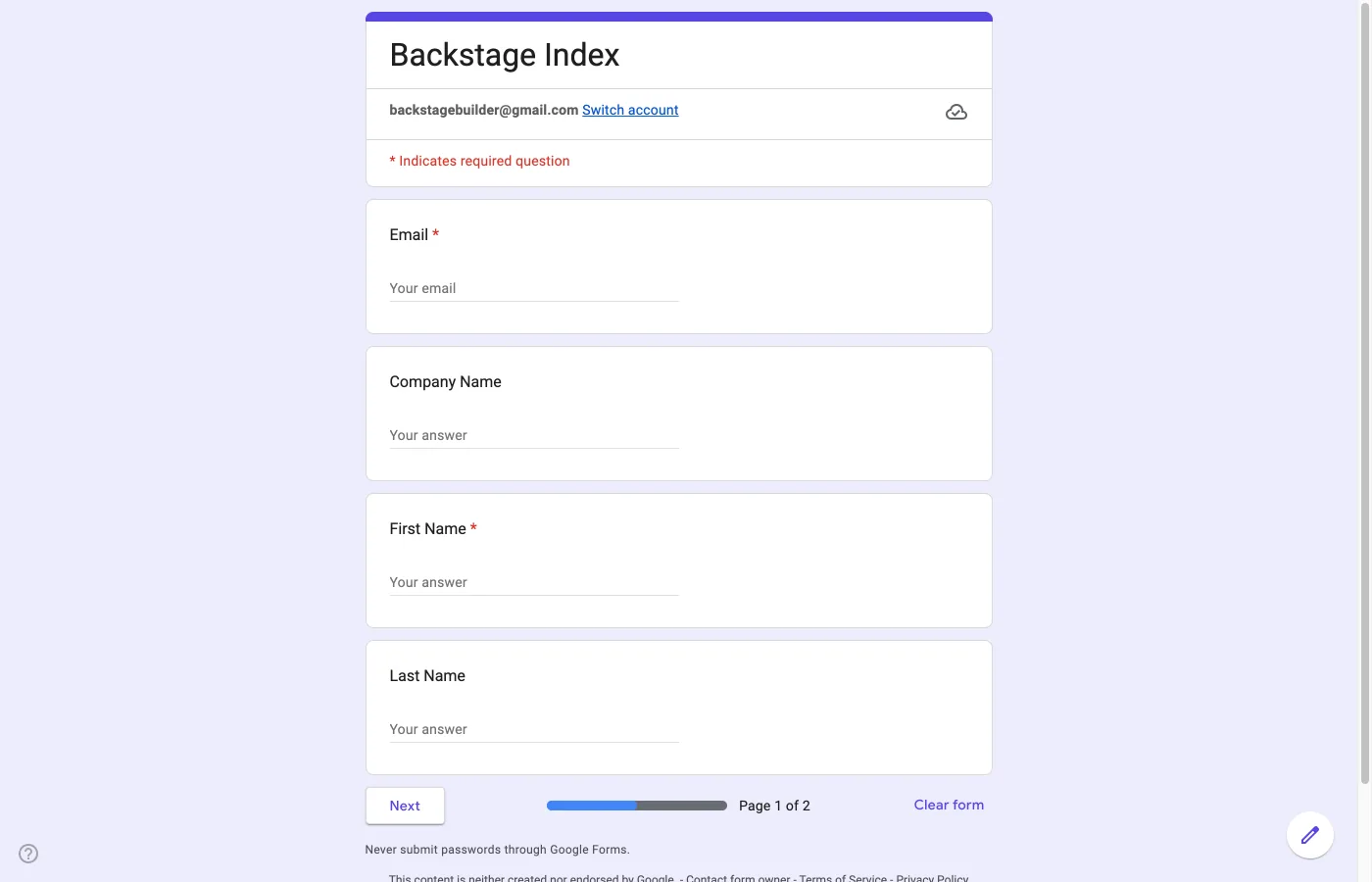
Section 1's order shuffles on reload: that's normal, not a bug
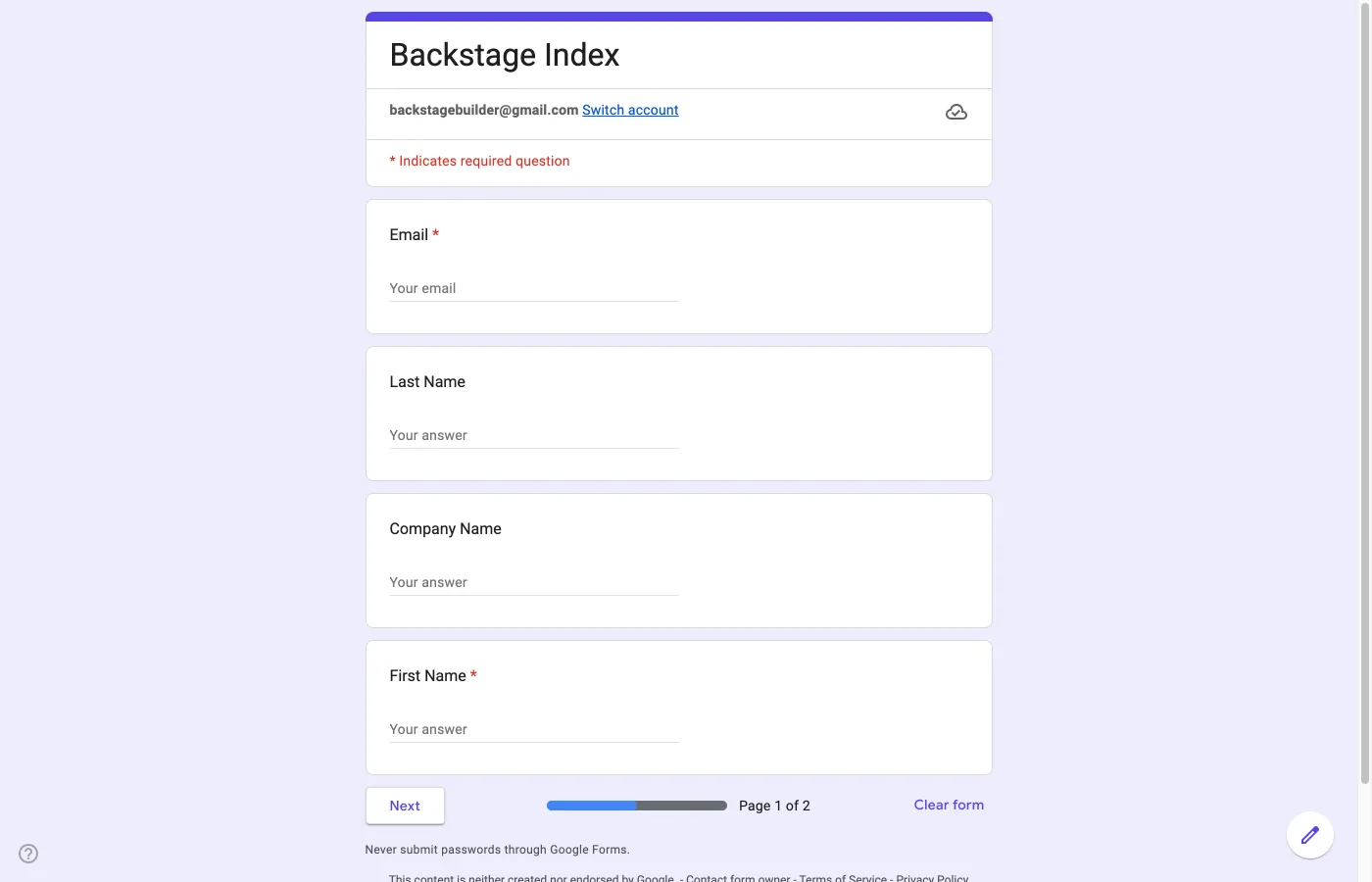
Google Forms randomizes every question within a section, with no way to exempt one. That's also what keeps your statements shuffled, so it's worth keeping. If the order genuinely matters to you, fold the label into the question itself: Company (optional).
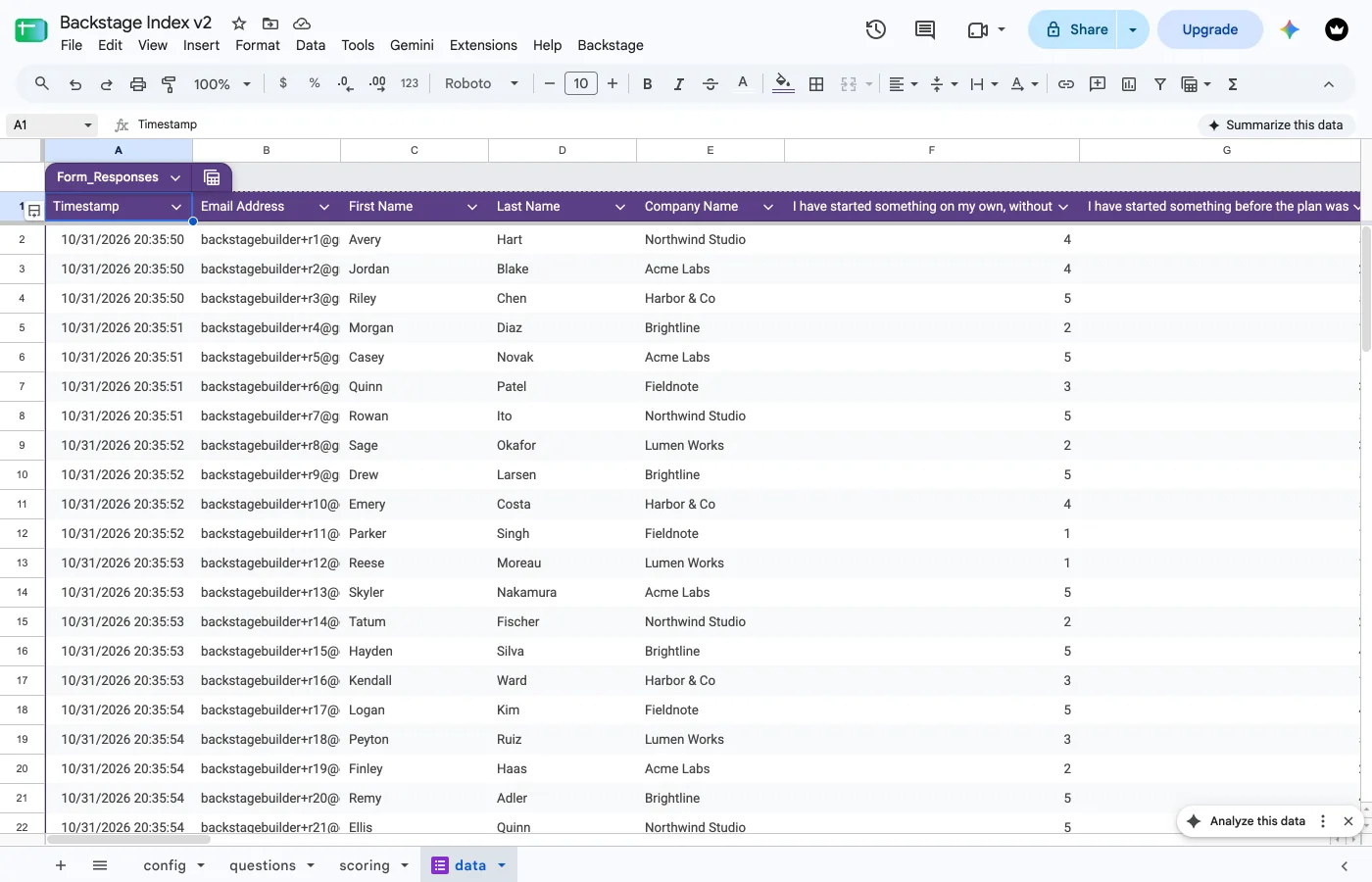
Changing profile_fields reaches a form that already exists only when you run Build Form again. Renaming a field updates the form in place. Adding or removing one needs a new form, and Build Form offers to replace it.
The two prompts that aren't here
Two earlier prompts run before the sheet knows anything: a content audit of your existing material, and the facet discovery that comes out of it. They live on the web instead: coroin.app/#survey. Run those first if you're starting from scratch.
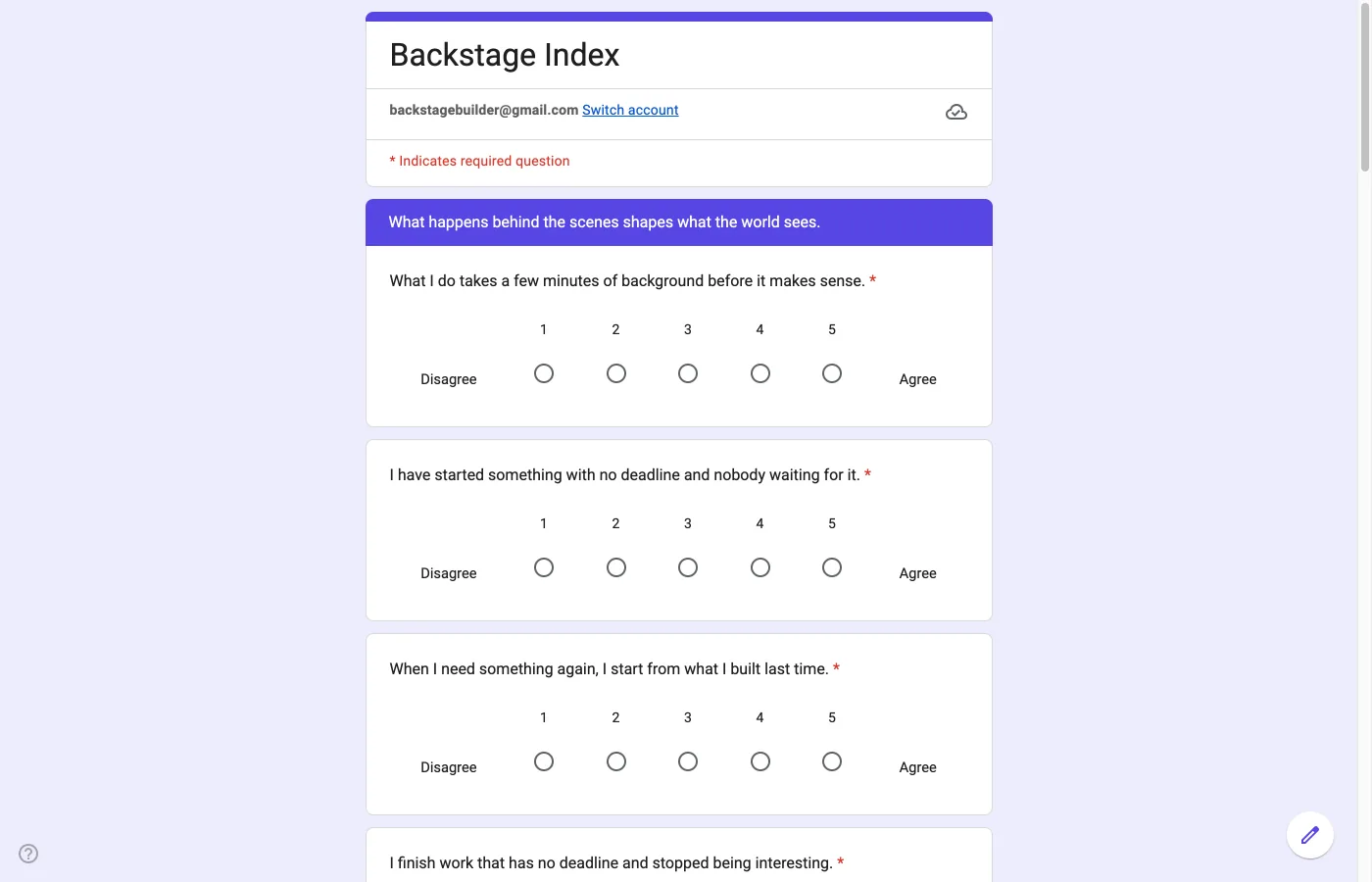
Backstage > Build Form creates the Google Form from your sheet, in two sections. Section 1 asks who they are: the name field, plus anything in profile_fields. Section 2 is the statements: shuffled, all required.
The form is filed next to your spreadsheet, and its ID and URLs are written back to the config sheet.
The form is born closed. It won't accept a single response until Open / Close Form passes its checks.
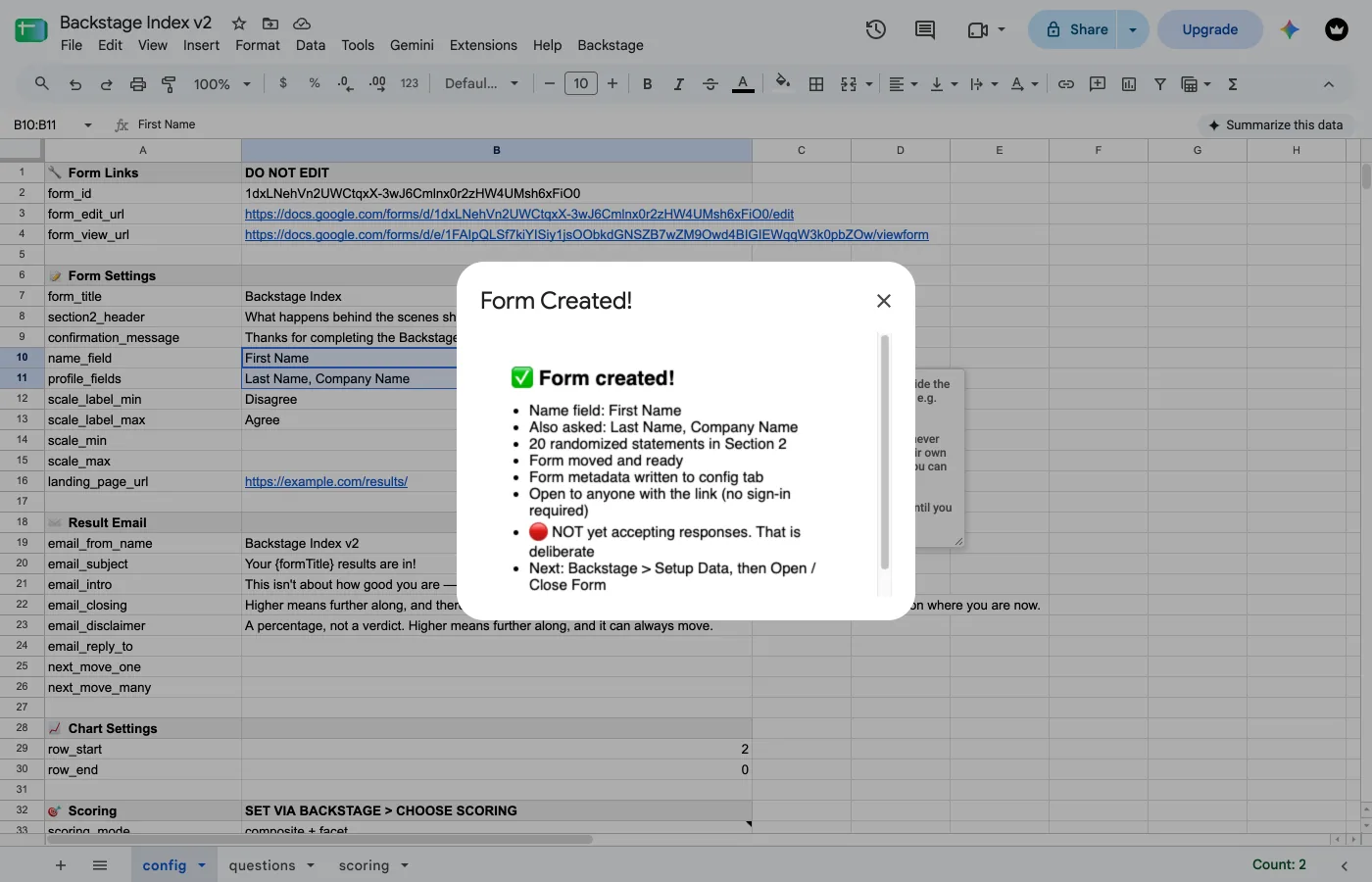
If a form with the same title already exists somewhere else in your Drive — one that isn't this sheet's own — Build Form refuses outright and links you to it: rename it, delete it, or change form_title and try again. If the questions sheet has a problem, it names the problem instead.
Changing your statements after the form is live
Edit the questions sheet, then run Build Form again. That's the whole job. Build Form sees that this sheet already has a form and updates it in place: it retitles the statements whose wording changed, adds the ones you added, removes the ones you deleted, and leaves everything else alone. The form keeps its link, its theme and header image, whether it's open or closed, and every response it has collected. If responses are already linked, the scoring on the data tab is rebuilt against your new wording in the same click, so there is no Setup Data step afterward.
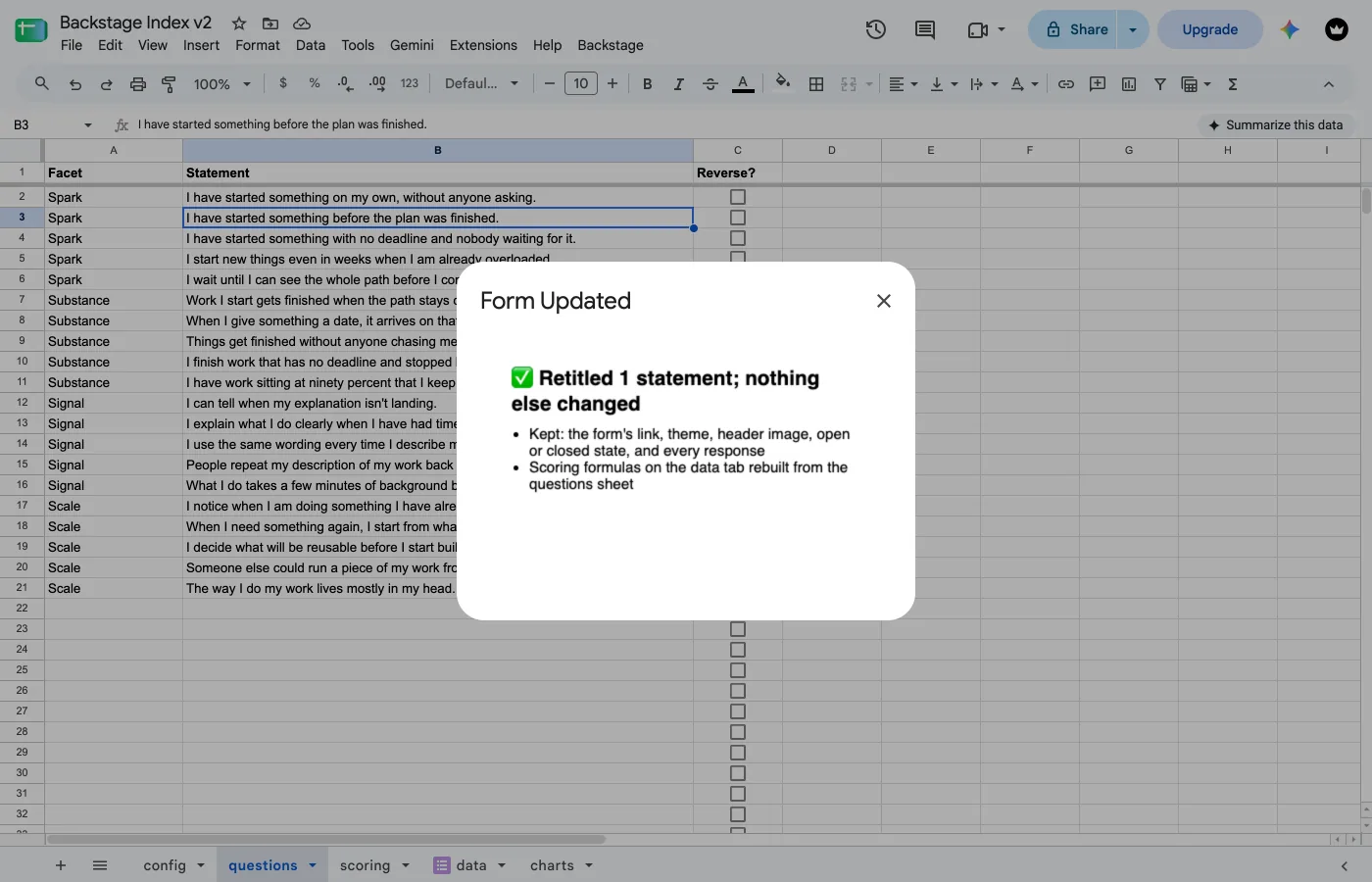
The same goes for the form settings on the config sheet: form_title, section2_header, confirmation_message, name_field and the scale labels. Change them, run Build Form.
Reword a statement in its own row. Build Form lines up the statements you didn't touch first, and a changed row between them is a reword of the statement that was there. It won't guess in two cases, and offers to replace the form instead (below): a statement moved to another row or another facet, and a statement reworded in the same spot where another one in that facet was added or deleted. For that one, make the two changes in separate runs: reword, Build Form, then add or delete, Build Form.
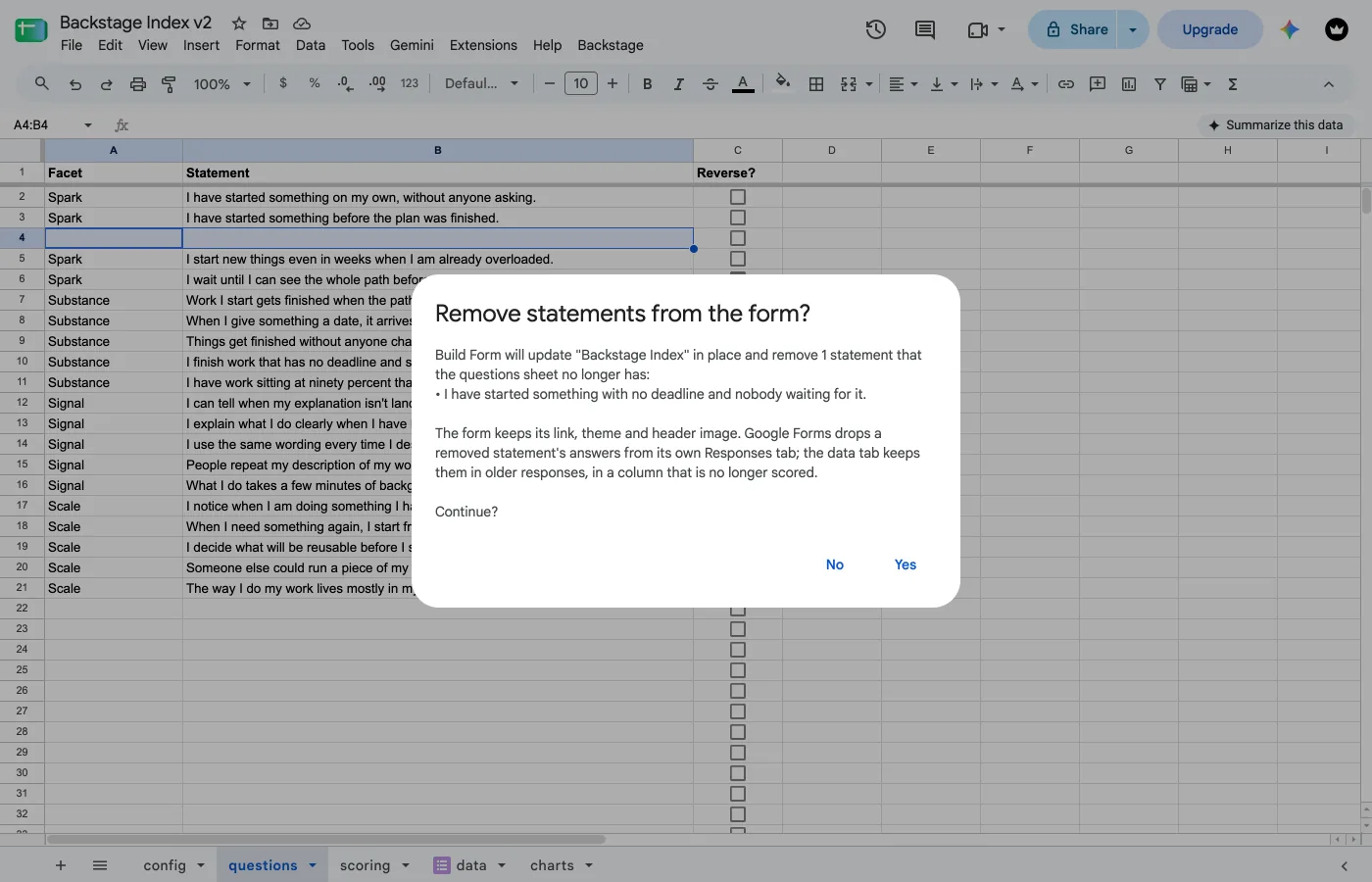
Deleting a statement asks first. Build Form names the statements it's about to remove and waits for your Yes. Their answers stay on the data tab in older responses, in a column that's no longer scored. Google Forms' own Responses tab drops them.
Old responses keep their old answers. A reworded statement keeps the numbers people gave to the old wording. After a small edit that's fine. If the meaning changed, everything on the data tab from before the change scores a question nobody was asked. Nothing re-sends, so results already delivered are unaffected. If those responses matter to you, copy the data tab somewhere else before you start. If they were tests, clear them.
An added statement has no answer in the responses from before it existed. Their scores count only the statements each person actually answered, so adding one doesn't drag anyone's score down.
Under Maturity, an unanswered rung counts as not cleared: an older response can't climb past a rung it was never asked.
When the form has to be replaced
Some changes can't be made to the form you have: adding, removing or renaming a facet, moving a statement, a reword and an add or delete in the same spot (above), changing scale_min / scale_max, or adding or removing a profile_fields entry. Build Form then tells you which, and offers to replace the form: it trashes the old one and builds a fresh one. It never replaces a form without that Yes.
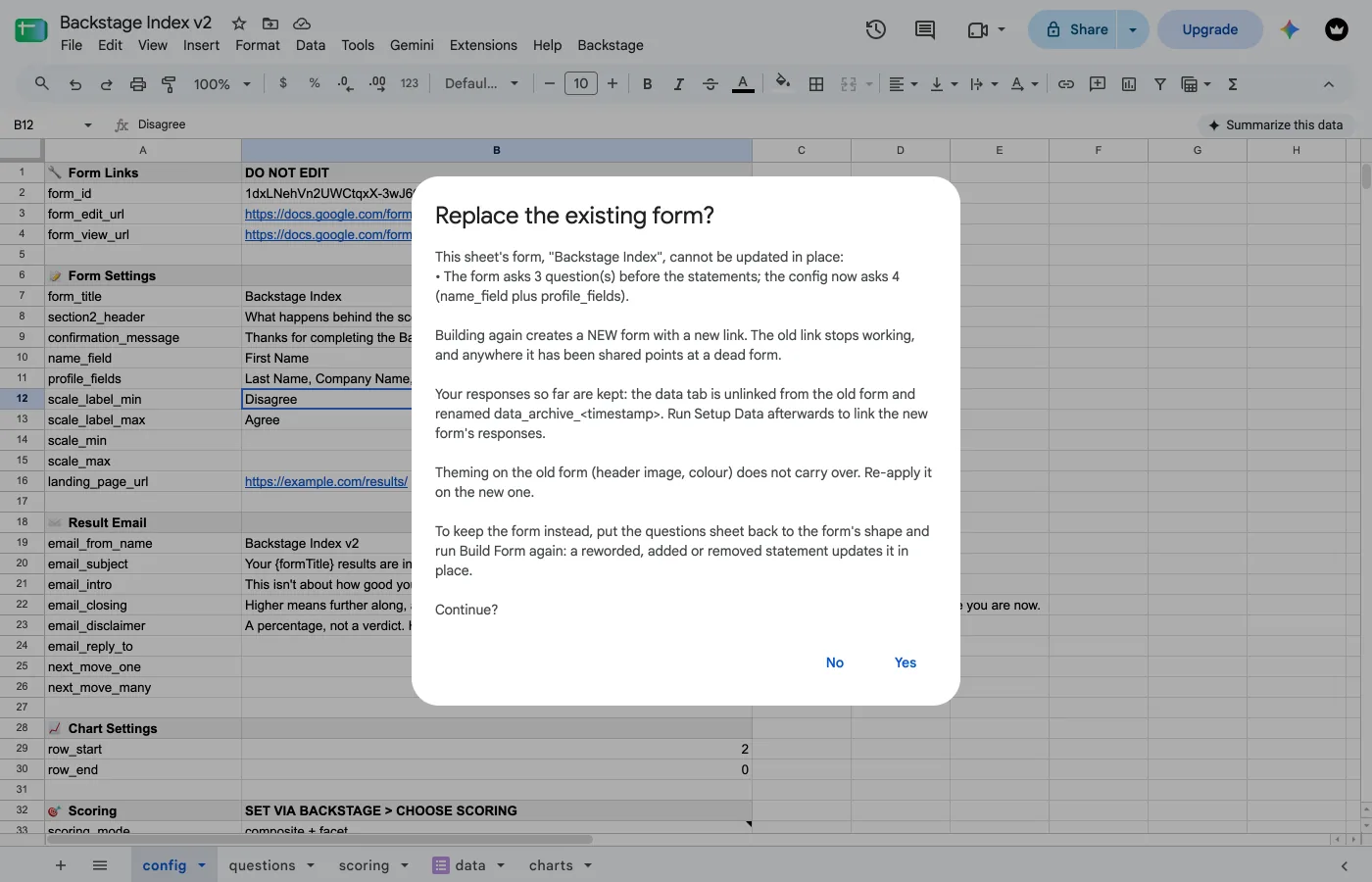
What that costs: a new link. The old one stops working, and anywhere it's already been shared (a landing page, a QR code) now points at a dead form. Theming does not carry over: re-apply the header image and color on the new form. Responses are kept: the old data tab is unlinked from the old form and renamed data_archive_<timestamp>, so it's still there to read and nothing points it at a form that no longer exists. The new form is born closed: run Setup Data to link its responses, then Open / Close Form.
Say No and nothing changes. Put the questions sheet back the way the form has it, and Build Form updates in place instead.
Customizing the look: theme, color, header image
This is a native Google Forms feature, not something Backstage controls. Open the built form and click the palette icon in the toolbar to set a header image, a theme color, and a font style.
It survives Build Form updating your form. It doesn't survive a replace (above) or a Factory Reset: both make a new form, so re-theme afterward.
Header image sizing
Google crops whatever you upload to a wide strip, roughly 1600 × 400px: starting near that size avoids an awkward crop. No image of your own? The same picker offers Google's stock library, already sized correctly.
What Setup Data does to your columns
Setup Data, and Build Form when it updates a linked form, removes the scoring columns it knows about and writes fresh ones at the end of the sheet, so your facet columns end up to the right of radar_file_id and email_status rather than next to the answers. That is cosmetic. Everything is resolved by header name and nothing depends on position, so there is no reason to reorder them.
Backstage > Setup Data does three things: links the form's responses to a tab called data, writes the scoring formulas into it, and installs the trigger that sends a result email on every submission.
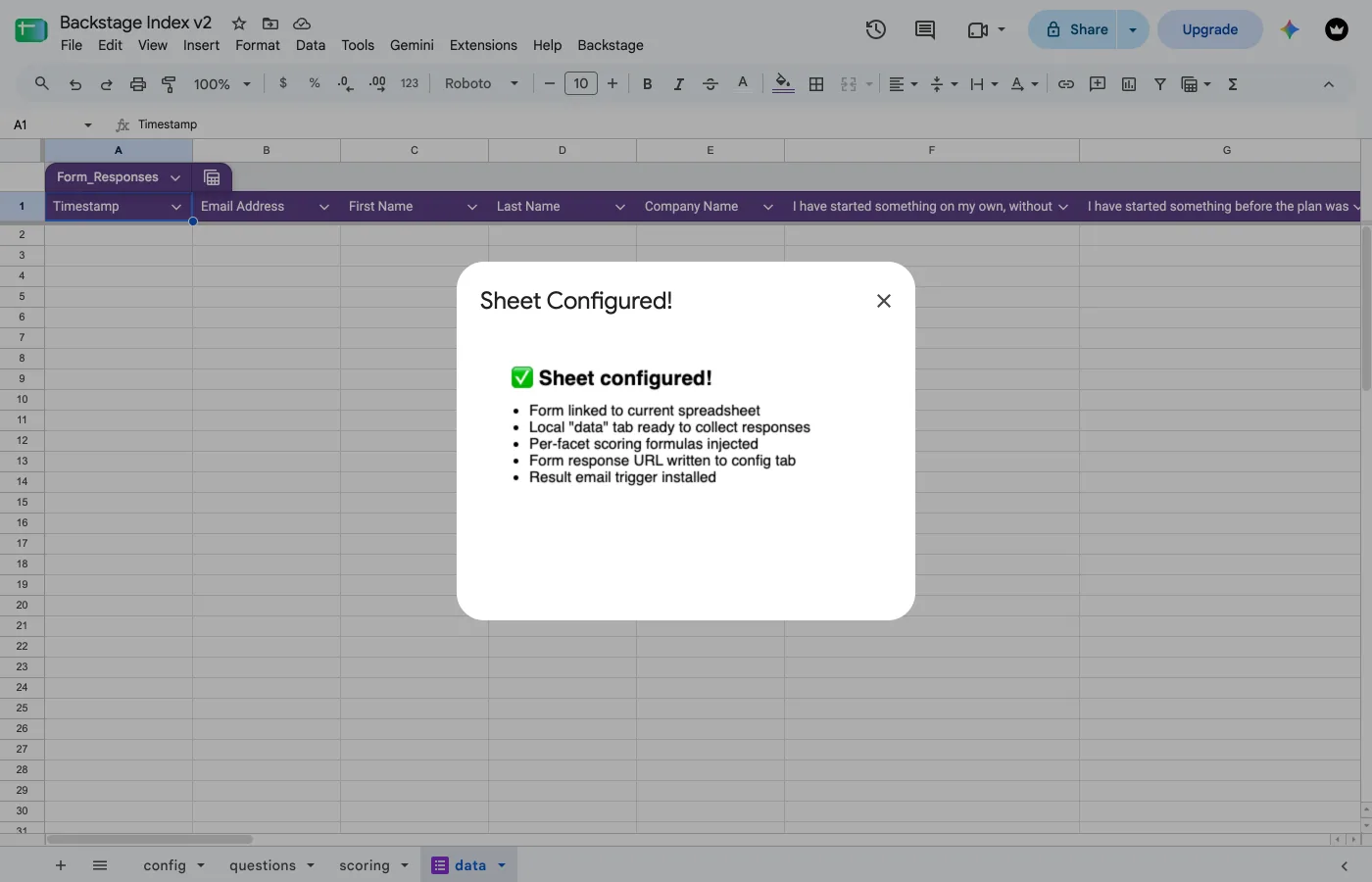
Run it again after Build Form replaces the form, or after a different Choose Scoring pick. A wording change doesn't need it: Build Form re-scores as it updates. It's safe: an already-linked form gets its scoring refreshed rather than relinked, so responses survive.
Confirm the trigger, don't assume it
This is the one step worth double-checking, because a missing trigger produces a survey that collects responses and silently emails nobody. Open Extensions > Apps Script > Triggers: you should see exactly one sendEmailOnSubmit, on form submit. Check Setup verifies the same thing.
Backstage > Check Setup runs the pre-flight and shows what it found (❌ blocking, ⚠️ worth fixing, ✅ confirmed), plus whether the form is currently open. This is the same check that gates going live, so a clean run means the form will open.
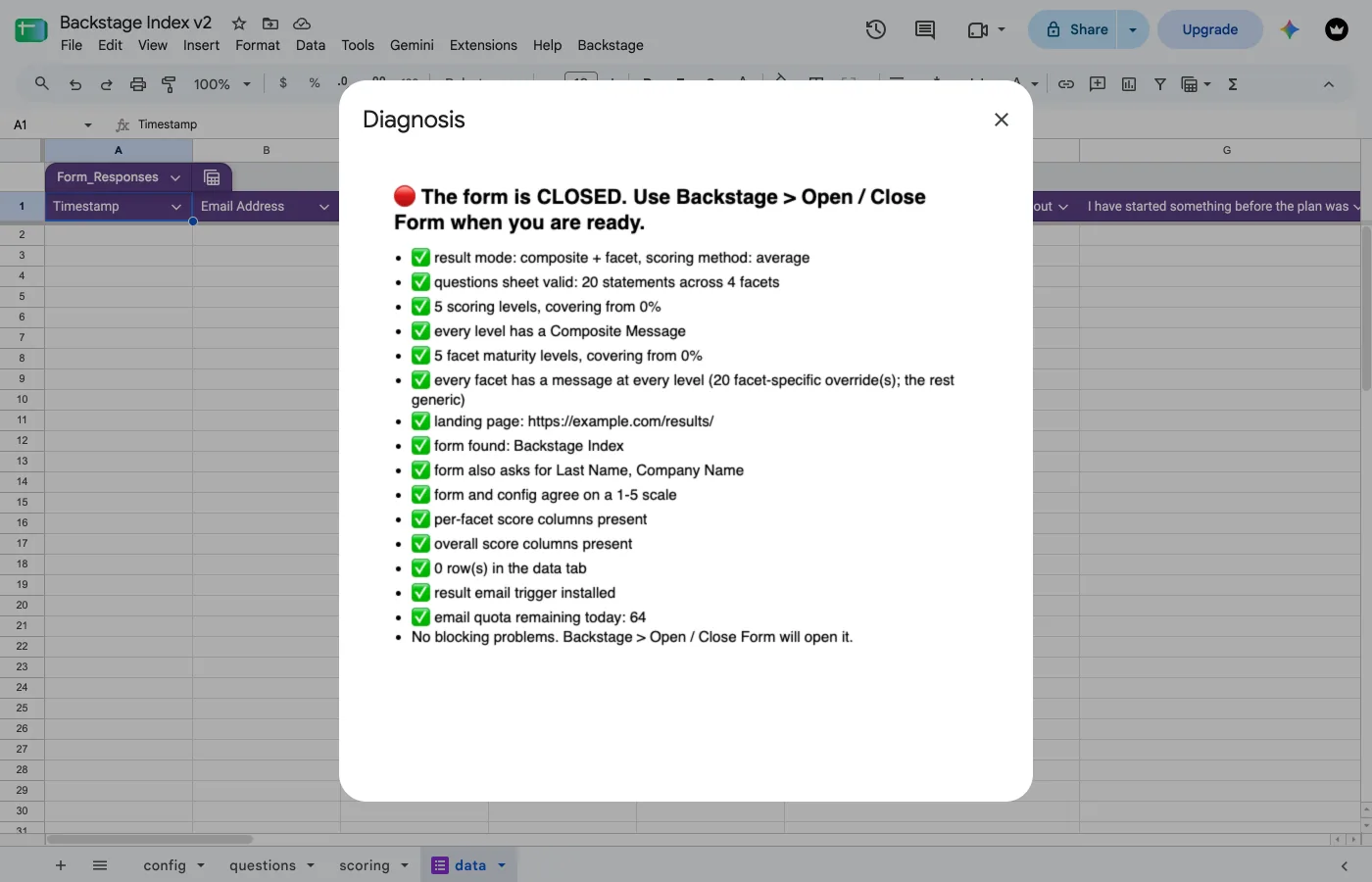
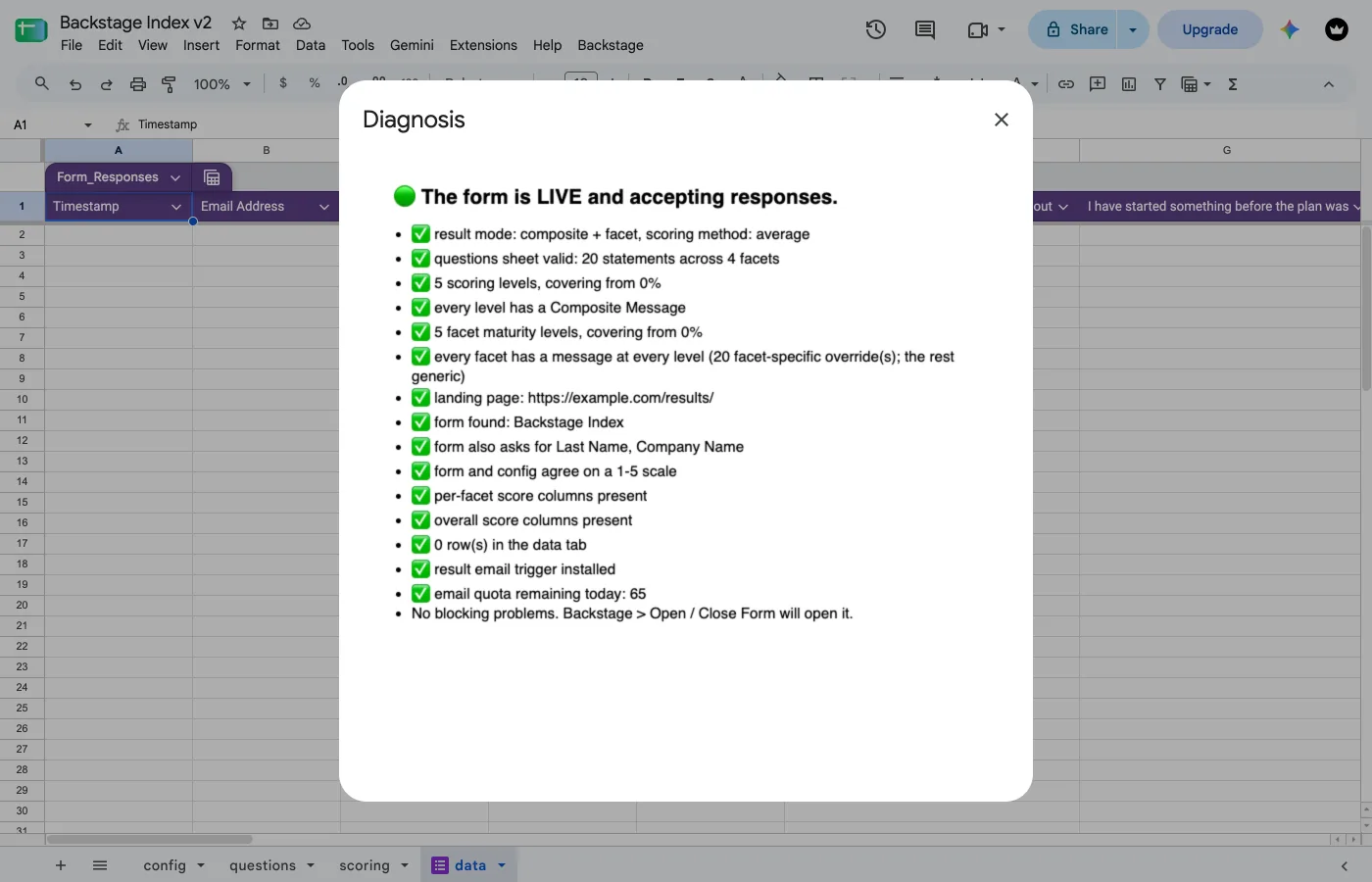
If a facet is scored as Maturity, Check Setup reads your ladder back to you: facet by facet, rung by rung, naming which statement it will treat as which rung, then what each negative statement does: which level it cancels, or "not scored" when its Contradicts level is blank (a reminder, not a blocker). Read it before anyone takes the survey, because this is the only place the mapping is visible. Check Setup confirms the counts line up (every facet the same number of rungs, one label per rung plus a floor) and holds the publish gate until they do. Whether the rungs are in a sensible order is a judgment only you can make, which is why it shows you the mapping rather than passing or failing it.
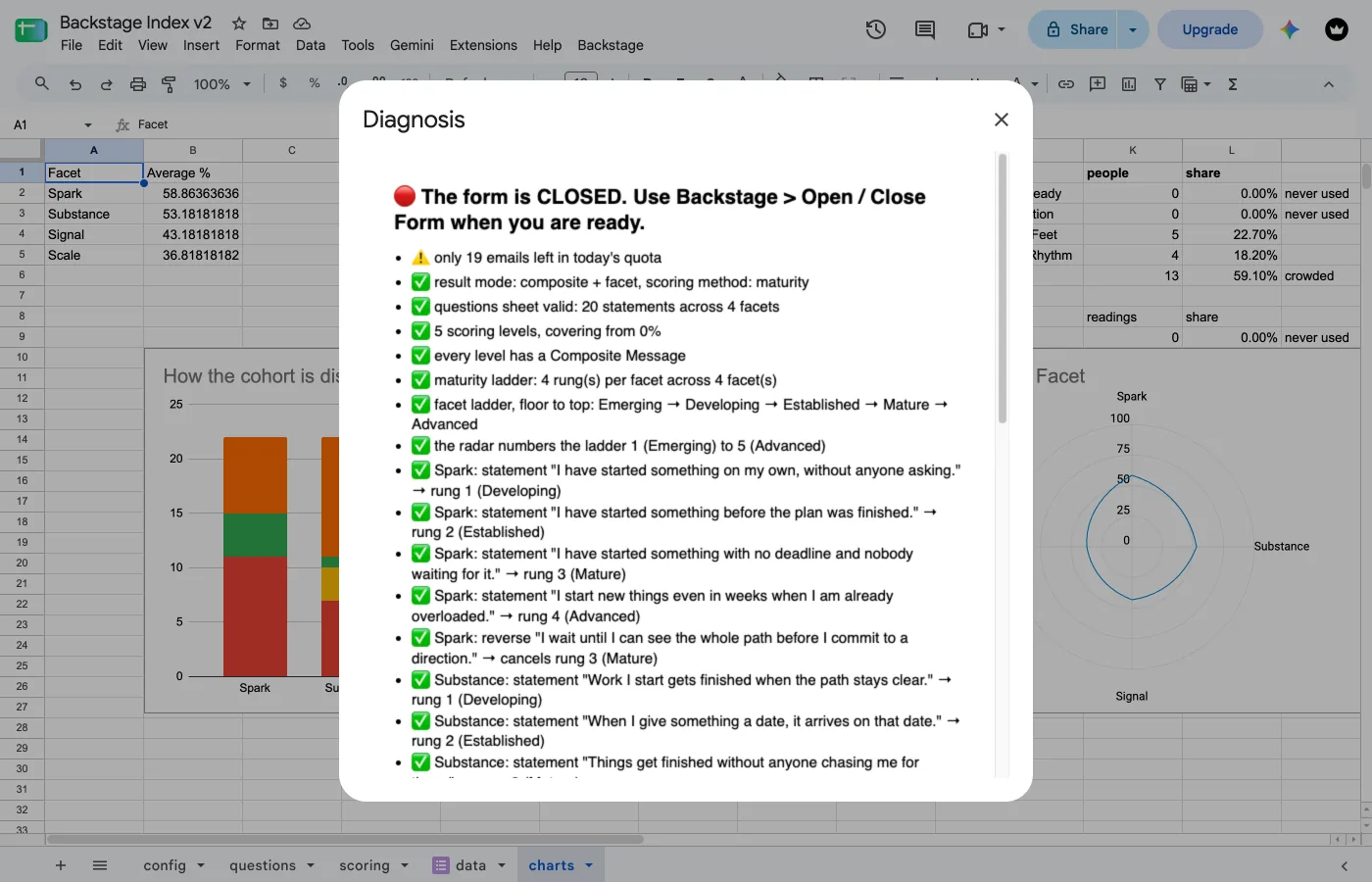
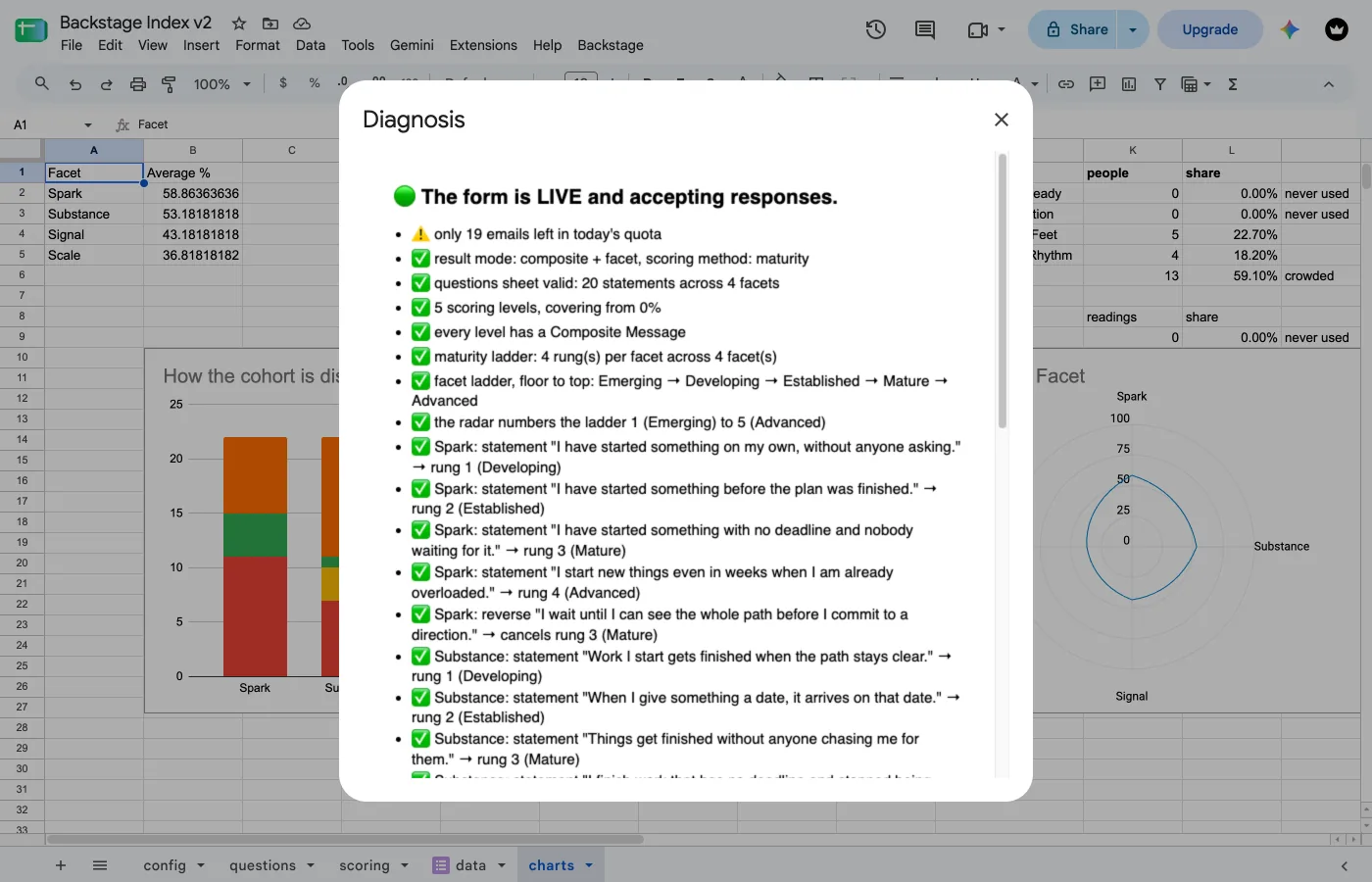
The blockers you're most likely to meet:
landing_page_urlis still the sample's: respondents would land on someone else's site.- A gap in facet-message coverage: a level with no generic Facet Message (column F) and no per-facet override for it.
- The form's answer scale and the config's disagree.
- No results-email trigger, or more than one (duplicate emails).
- Missing Composite Score / Composite Level columns after choosing a Composite-including option in Choose Scoring. Run Setup Data again.
- A field listed in
profile_fieldsthat the form doesn't ask. Run Build Form again to rebuild it. - Maturity facets with different numbers of rungs, or a facet ladder whose label count doesn't match (one floor label plus one per rung).
- A Contradicts level that isn't one of the facet's levels, isn't a whole number, or sits on a row that isn't a negative statement.
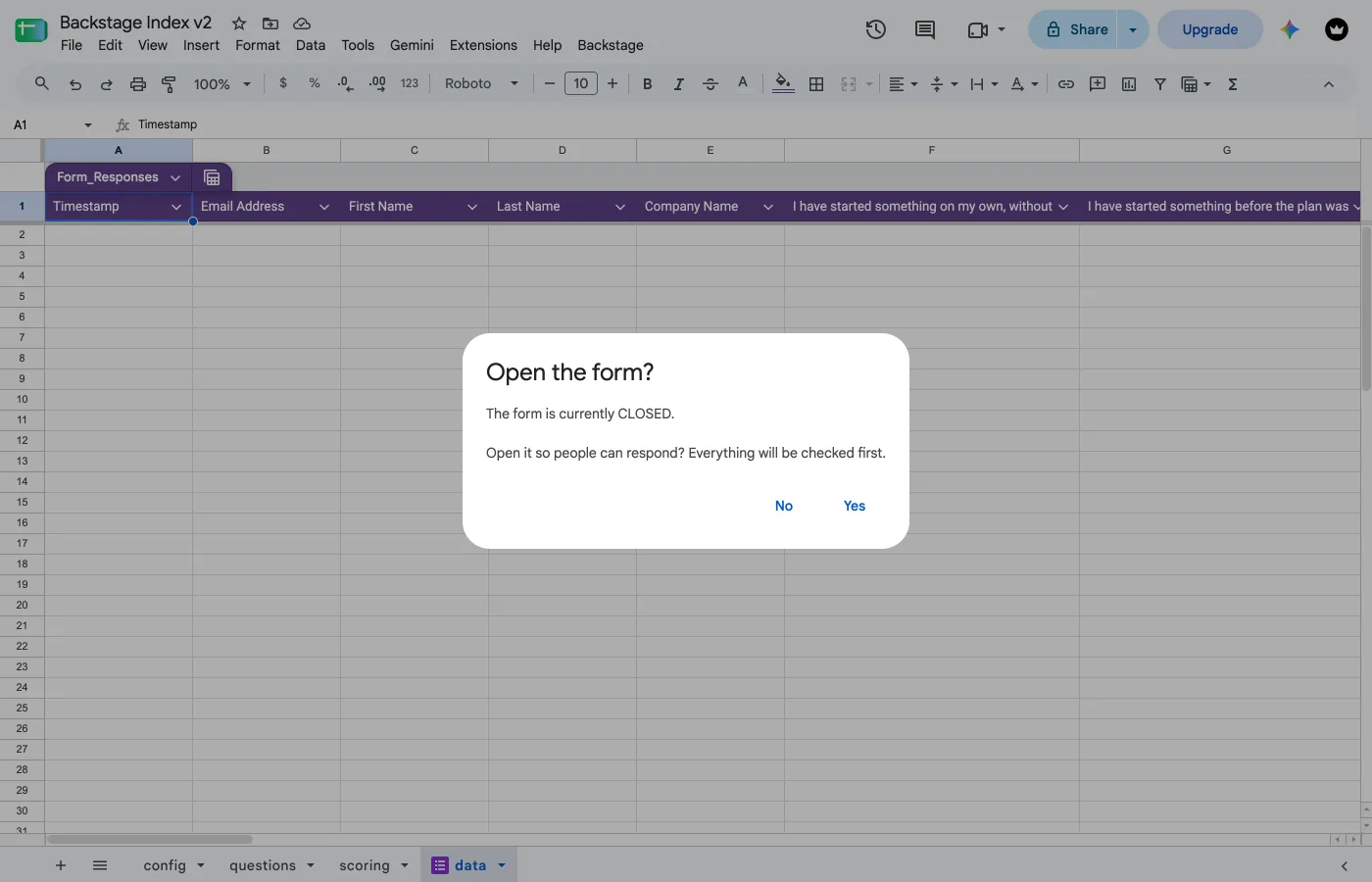
One menu item, both directions. It reads the form's current state, tells you what it's about to do, and confirms before doing it.
Opening runs the full pre-flight again and refuses if anything is wrong: better to find out now than after a room full of people has submitted.
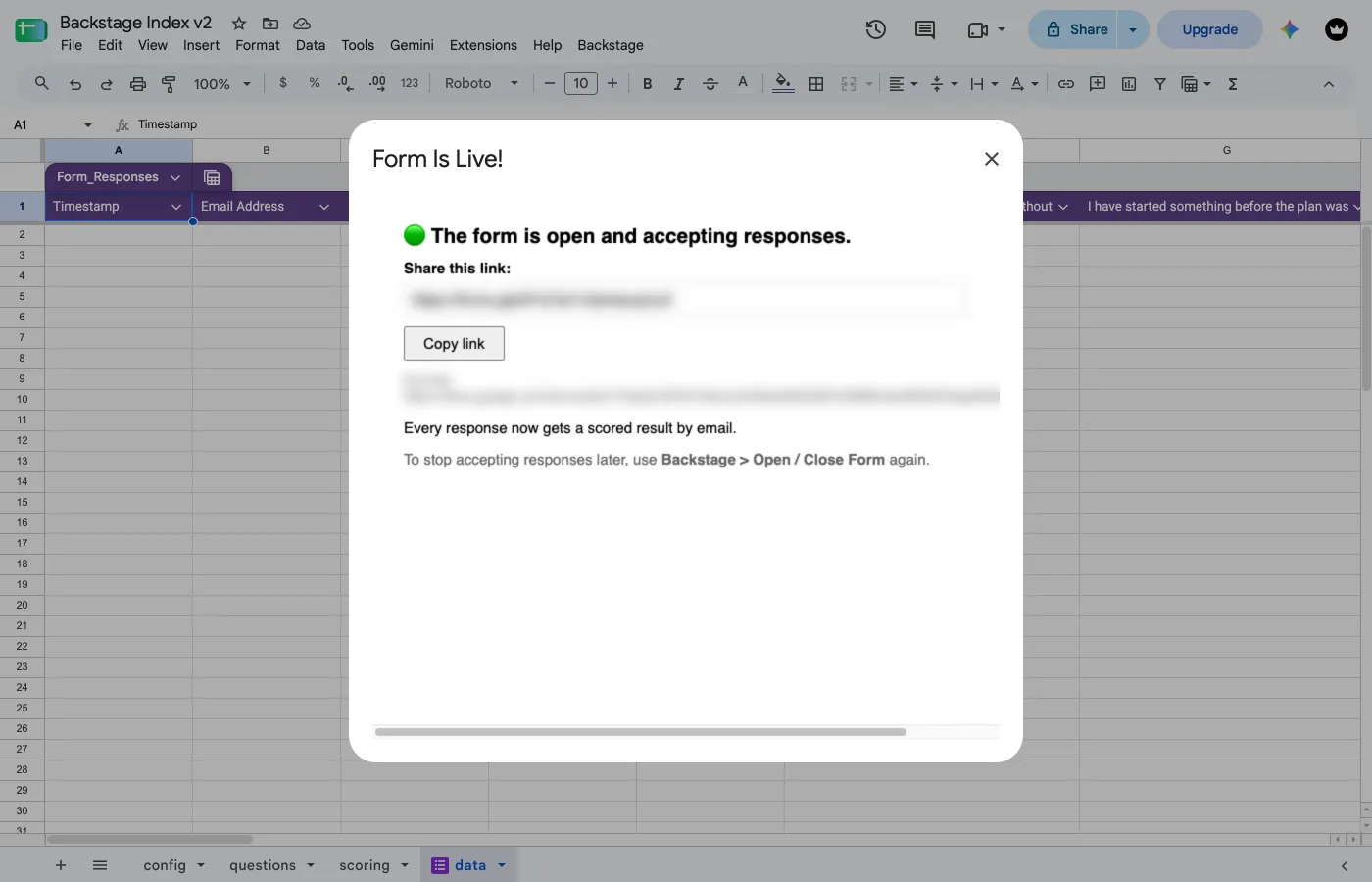
Opening gives you a share link, shortened to forms.gle where possible. From that moment every response is scored and emailed automatically.
Closing stops new responses. Everything already collected stays untouched.
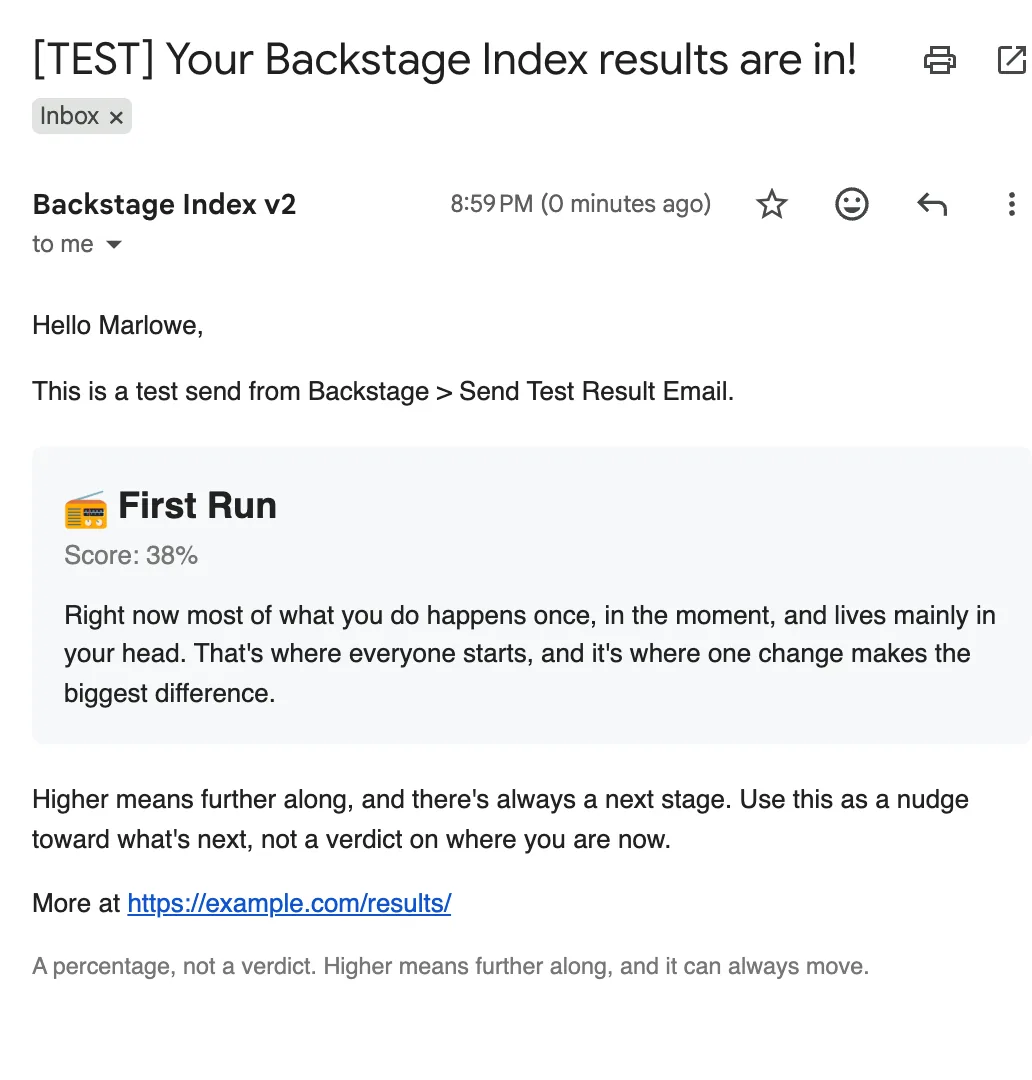
Once the form is open and at least one response (including a test one from yourself) has come in, Send Test Result Email shows you exactly what a respondent receives. There's no earlier point where that step can do anything, which is why it isn't part of the numbered flow above.
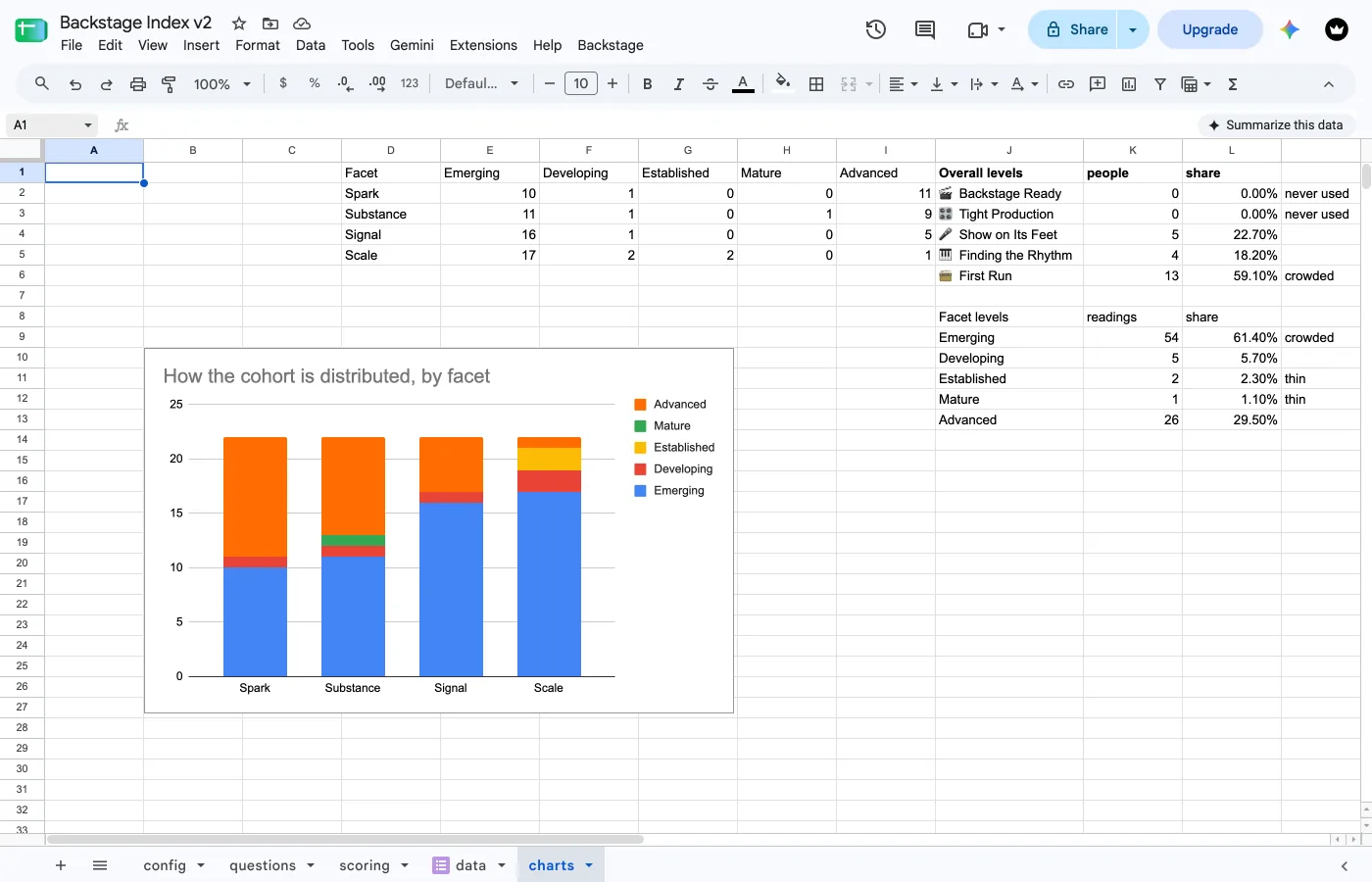
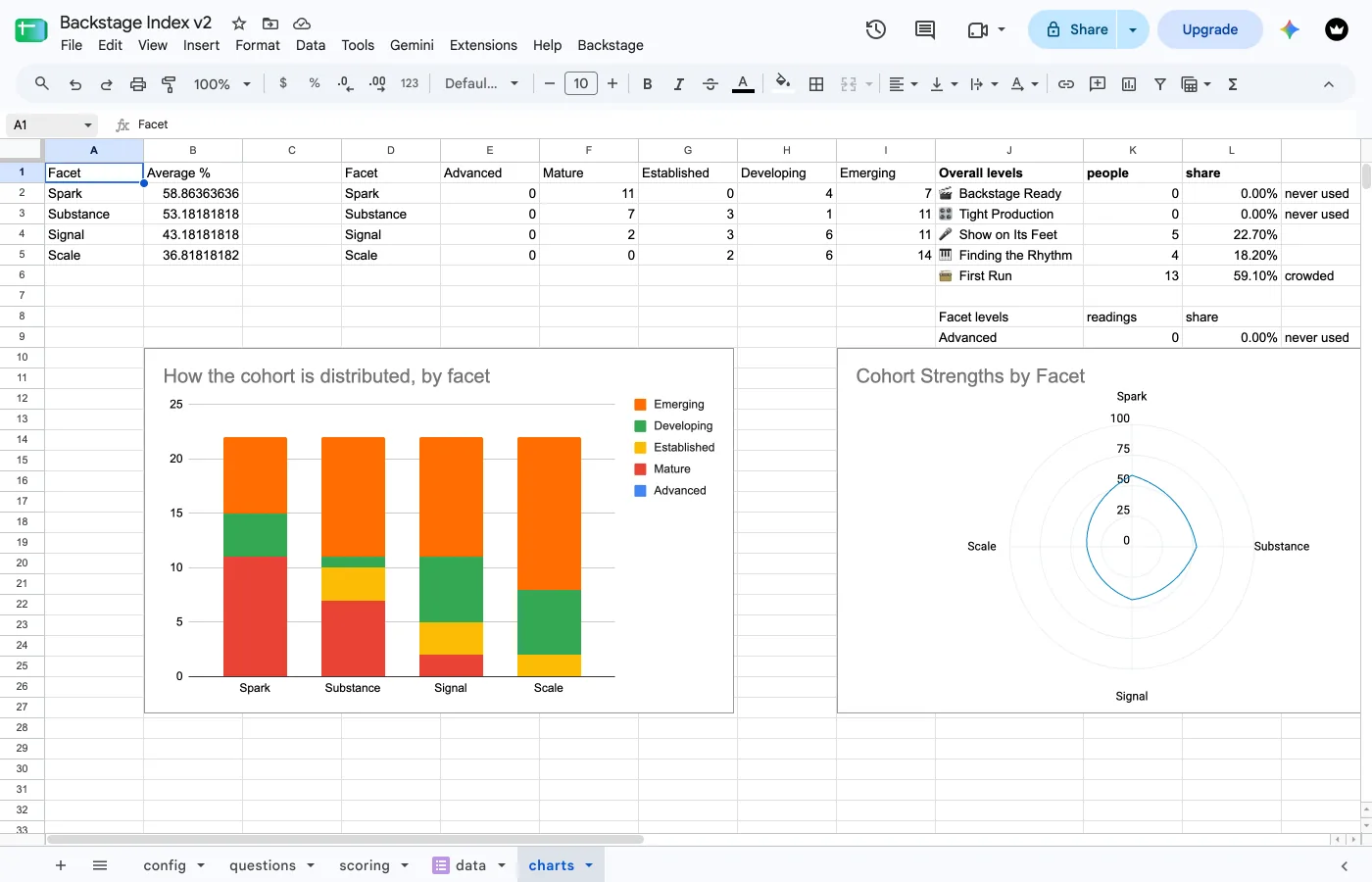
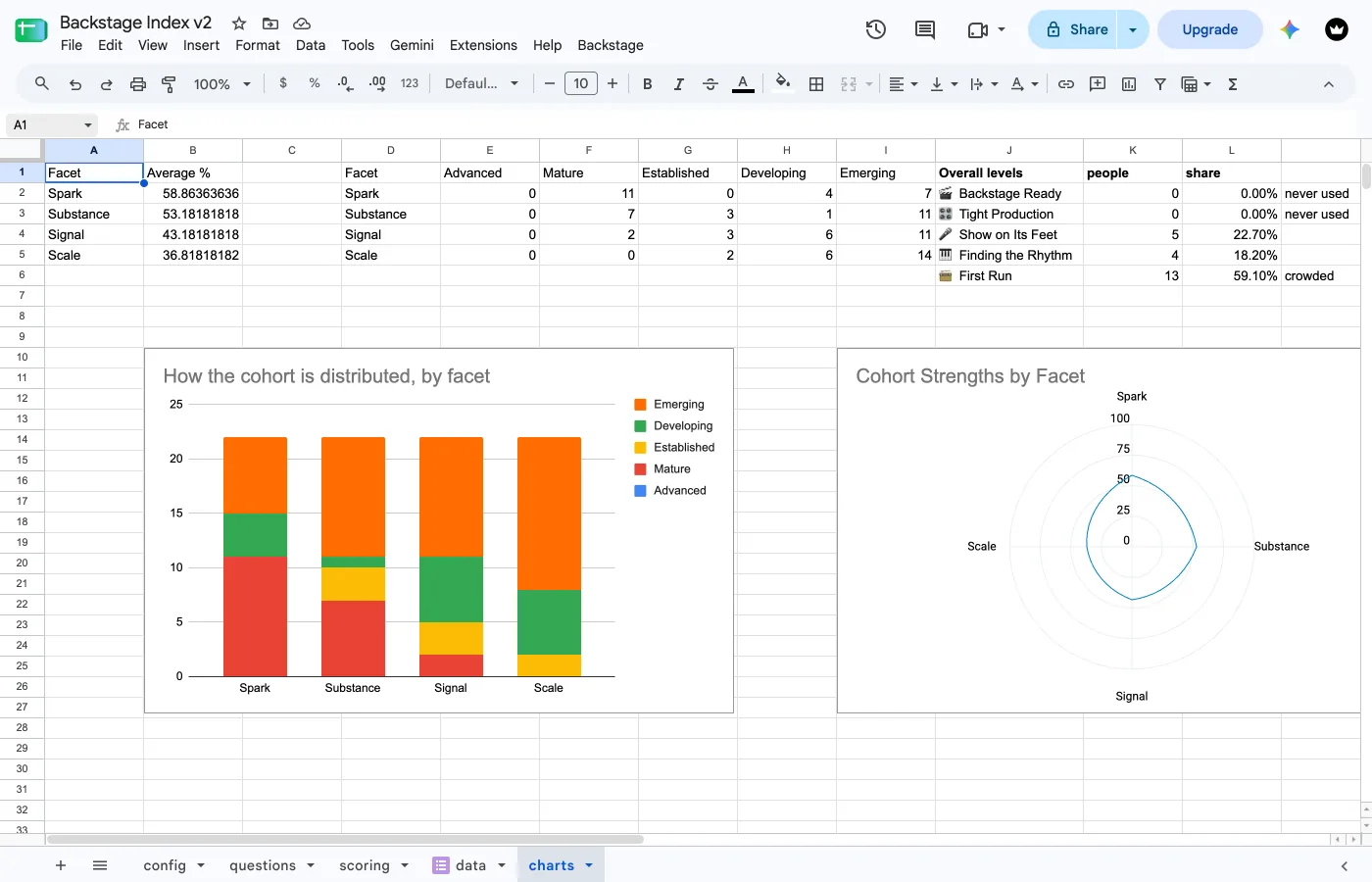
Backstage > Build Charts reads the responses and writes two charts to the charts tab: a radar of the group's average per facet, and a stacked column per facet showing how many people landed at each level. Both radars are pinned to a fixed axis, so different groups are directly comparable.
Yes, this still shows facets — even under Composite only
Facet scoring runs behind the scenes no matter what scoring_mode is set to, since composite is just a plain average across every statement. Your respondents never see a facet in their own email under Composite only, but Build Charts still shows you the facet-level breakdown of your cohort, because it's reading data that was there all along.
Under Maturity scoring, the cohort radar is skipped (there's no percentage to average), but the stacked-column distribution and the calibration report below still cover every facet.
It also tells you whether your levels are any good
Alongside the charts, a calibration report shows how many people actually landed in each level. A level nobody's reached is marked never used; one holding 45%+ of respondents is marked crowded: either means it's worth a two-cell edit on the scoring sheet to rebalance.
The report only appears once there are at least 20 responses.
By default it uses every response. To narrow it to one cohort, set row_start / row_end on the config sheet (row_end of 0 means "to the end"). Re-run any time; it clears the tab and rebuilds.
Clear Test Responses
You've tested the form, and the data tab is full of your own submissions. Backstage > Clear Test Responses deletes every response from the form and every response row from the data tab, so the room starts on an empty sheet. It keeps everything else: the form, its link, its theme and header image, whether it's open or closed, your questions, scoring and config tabs, and the data tab's header row with its scoring columns, so the next response is scored as usual.
There is no undo, so it asks you to type CLEAR first, and tells you how many responses, rows and saved charts it's about to delete. Anything else, or Cancel, deletes nothing.
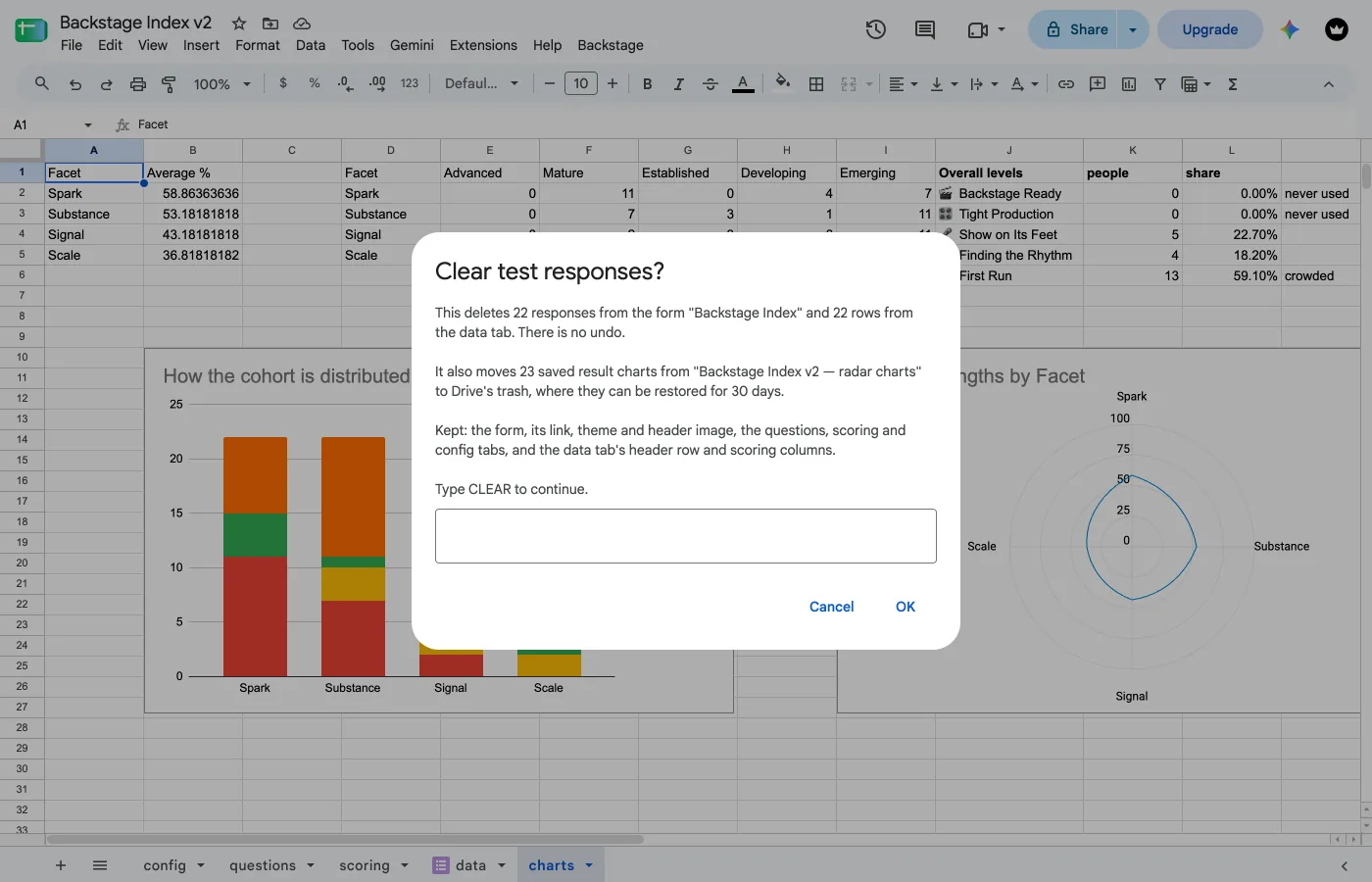
The result charts saved to Drive for those responses go to Drive's trash too, where you can restore them for 30 days; the prompt says how many. Result emails already sent stay sent. Run Build Charts again afterward if the charts tab still shows the tests.
Factory Reset
The one destructive teardown. Trashes the Google Form, deletes the data and charts tabs, and rewrites config, questions and scoring back to the shipped sample — including your Choose Scoring pick, which resets to Composite only even if you had chosen something else.
This deletes real things and there is no undo. Copy anything worth keeping — the data tab, your own statements or scoring — to another spreadsheet first.
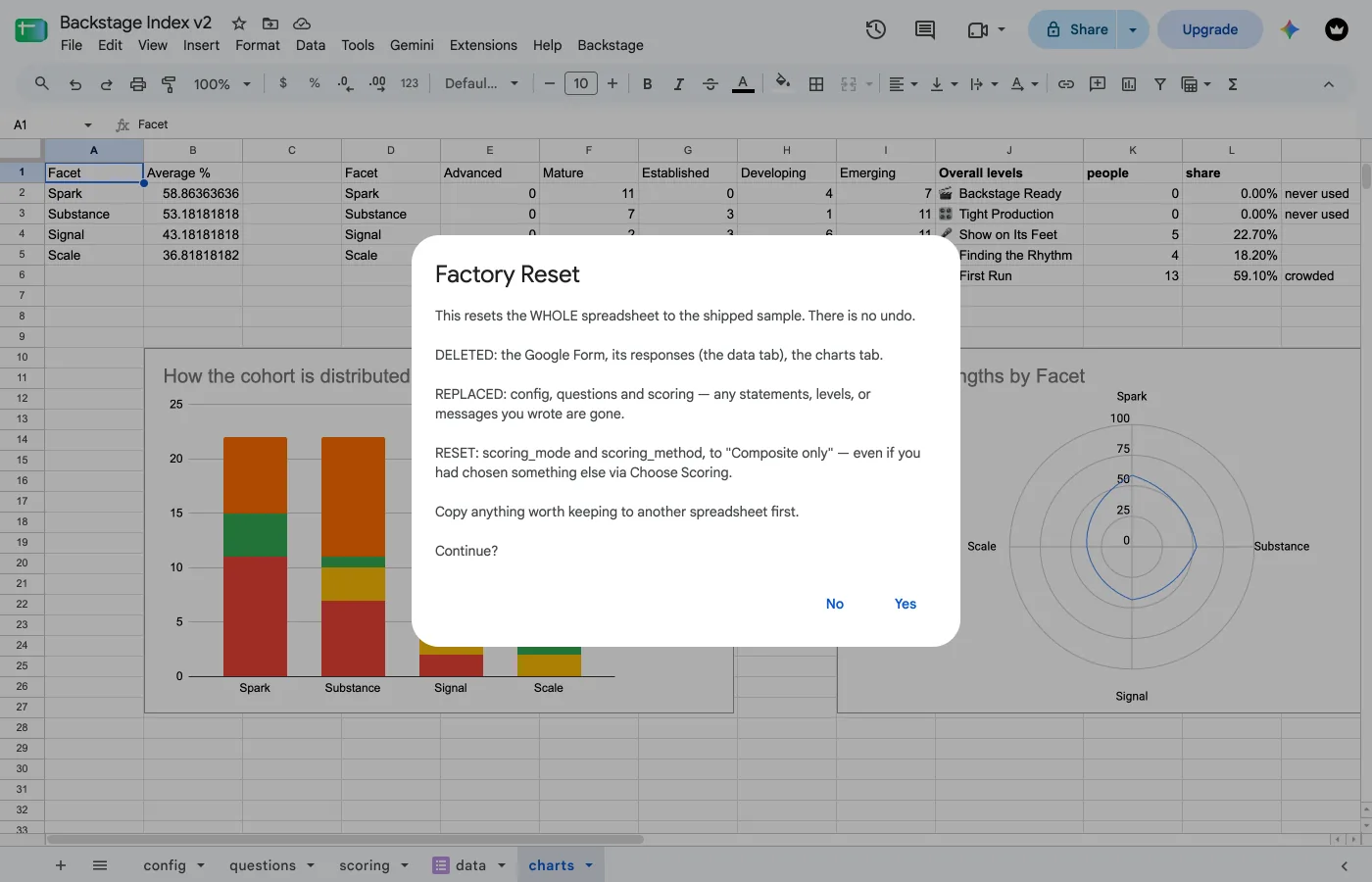
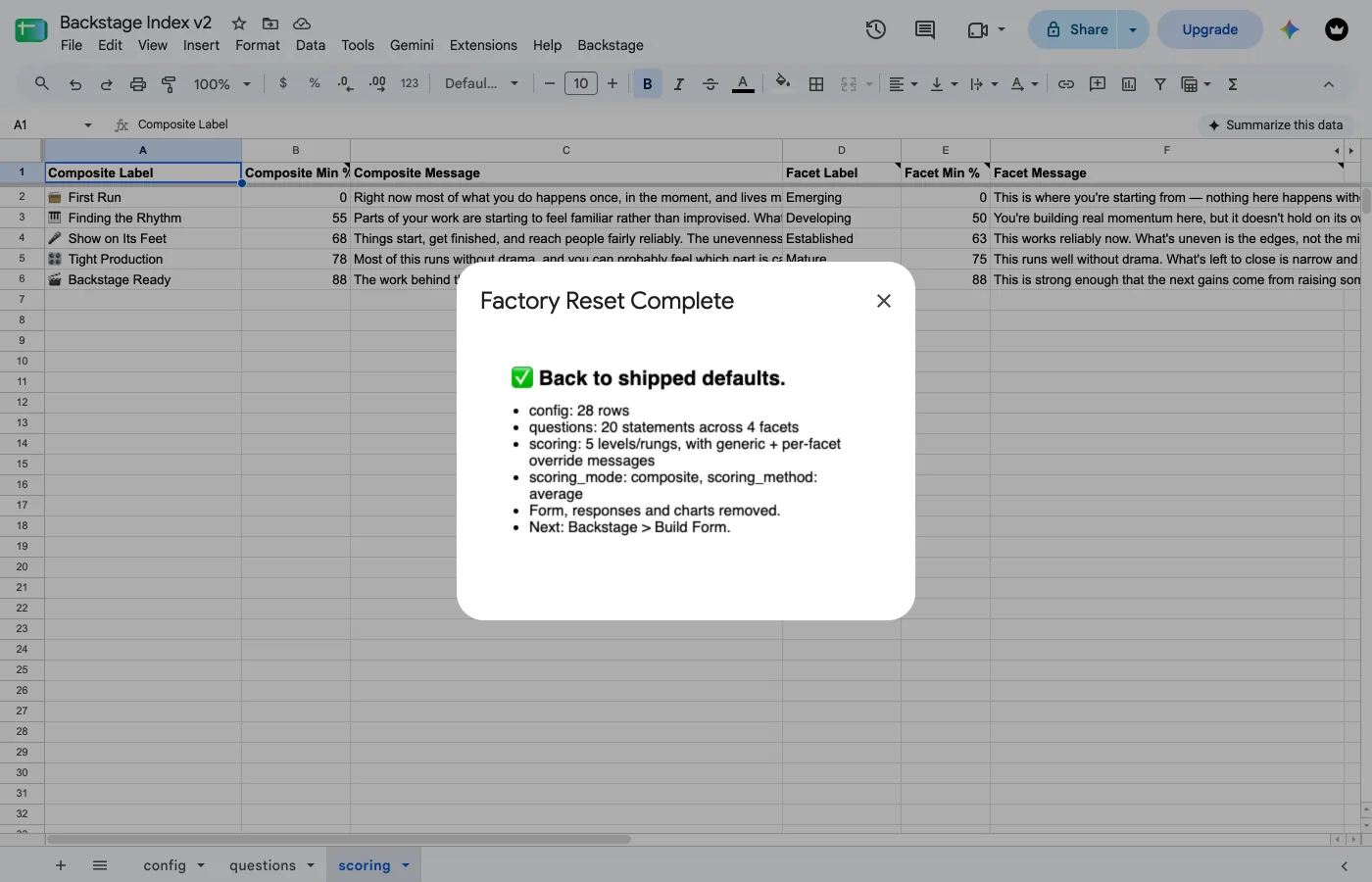
To drop only your test responses, use Clear Test Responses. Changing your statements is Build Form's job.
One sample works for both scoring methods: the shipped content already has the right shape for a Maturity ladder (four rungs plus one reverse item per facet, its Contradicts level filled in), so switching Choose Scoring to a Maturity option and running Factory Reset is the fastest way to see it work before writing your own.
Send Test Result Email
Backstage > Send Test Result Email takes the most recent row in the data tab, scores it, and mails you the result, always to the address you're signed in as. Subject is prefixed [TEST].
This needs a form that's already open with at least one response already submitted. There's nothing to resend before that. It lives here in Recovery, not in the numbered flow above, because "test before you go live" was never actually possible: run it any time after Open / Close Form, as an ongoing diagnostic rather than a one-time gate.
You need one response first
Open the form, submit it once, then run the test send. Close the form again afterward if you're not ready to share.
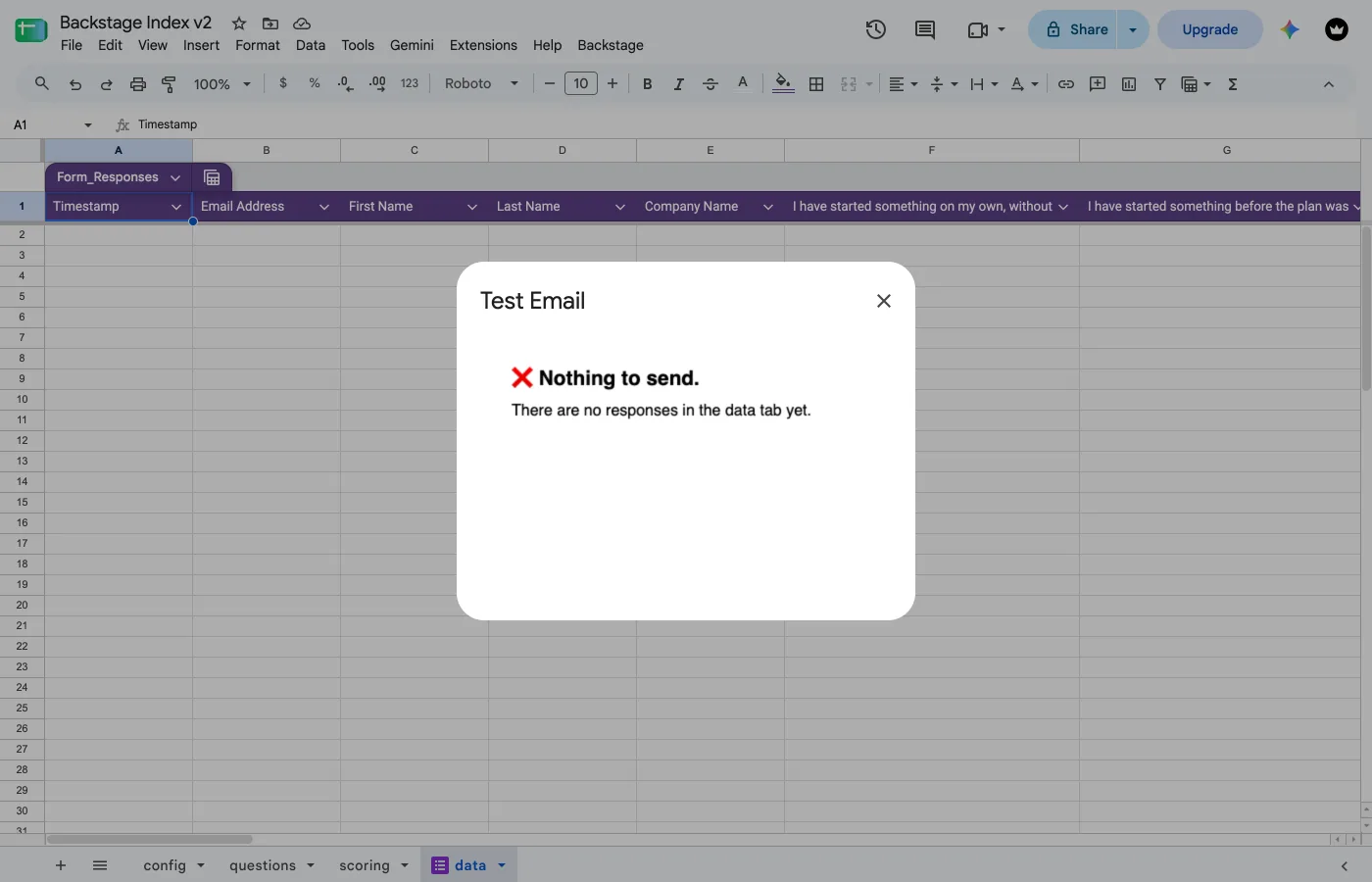
Submit that response from a different address than the one that owns the sheet. A response from your own address mails you a message you sent to yourself: Gmail files it under Sent, not Inbox, which looks like a failure that isn't one.
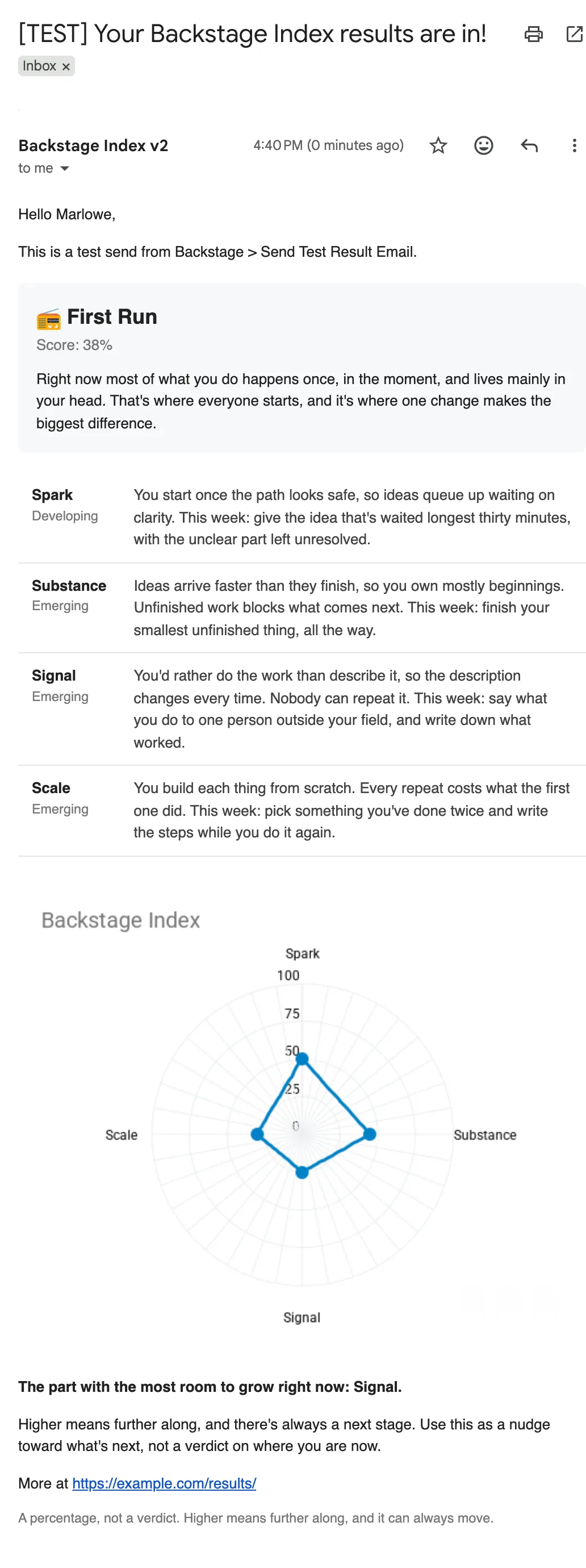
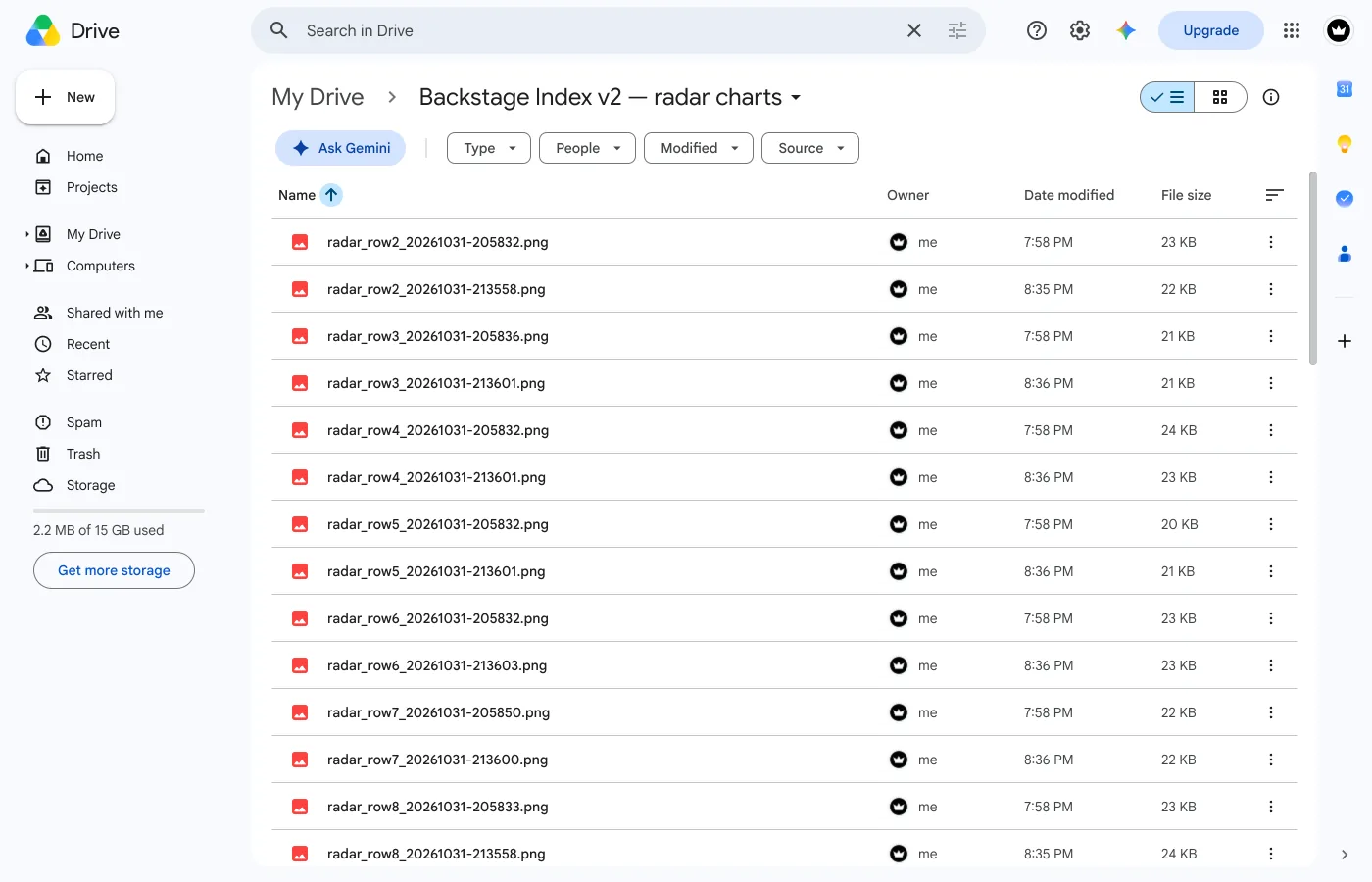
Every result email also saves its chart to a Drive folder next to your spreadsheet, one PNG per response, handy if you ever want to reuse a respondent's chart. Composite only never builds a per-respondent chart, so this folder doesn't exist in that mode.
- Check Setup names the problem in plain language. Start there.
- The
email_statuscolumn on the data tab records what happened to every result email: sent, or why not. - If Google briefly refuses to open your form, that's temporary. Close any tab with the form open in the editor, wait a minute, retry. Don't rebuild the form. Nothing is broken.
- Still stuck, or something looks broken? Click the yellow bug icon in the corner of any Backstage page (including this one) to send us a report directly: no need to hunt down an email address.
Somebody submitted and got no email
Three different failures look identical from outside. Check in this order, cheapest first:
- Is the trigger there? Extensions > Apps Script > Triggers should list one
sendEmailOnSubmit. Missing? Run Setup Data again. - Did it run, and what did it say? The
email_statuscolumn on the data tab holds the outcome. A row with a note there was reached; a blank one was not. - Did it fire at all? Extensions > Apps Script > Executions lists every run. An empty list with a trigger installed points at the trigger.
- Was it sent but not seen? If the respondent's address is the sheet owner's, it went to Sent, not Inbox.
Sending limits
A consumer Gmail account can send about 100 emails a day; a Workspace account considerably more. Check Setup reports what's left, and warns below 25: worth knowing before a workshop, not during one. A room of 120 people means the last thirty get nothing.
Backstage > About Backstage shows the version you're running and links back to this guide.